
Door and Jamb Data
The Door Data panel on the Door Job screen describes the raw door, and optionally its jamb, before any cuts are made. It has two tabs: Door and Jamb.
- Door and Jamb Data are usually loaded from the Door Data Library, so the same door can be shared by many Door Jobs.
- Data can also be entered or changed by hand.
- Each property is an expression, and can be copied with one click.
- Changes can be saved back to the library as a new file, a revision, or Ad Hoc.
Door Data
On the Door Job screen, select the Door tab in the Door Data panel.
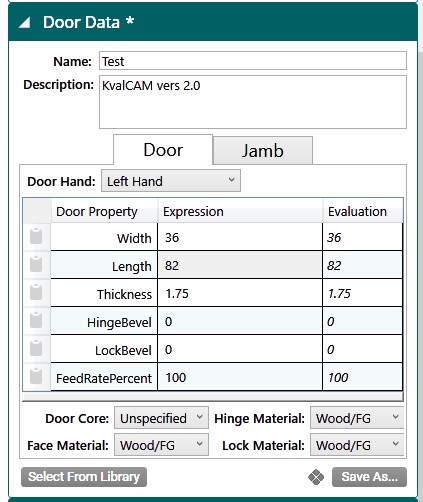
- Name and Description: identify the Door Data file.
- Door Hand: Left Hand, Right Hand, Left Hand Reverse, or Right Hand Reverse. See Door Handing.
- Door properties: the door's basic dimensions.
- Door Core: Unspecified, Hollow, or Foam. Clamping pressure adjusts to match.
- Face Material, Hinge Material, and Lock Material: Wood/Fiberglass or Steel, for the door's face, hinge edge, and lock edge.
| Property | Description | Expression |
|---|---|---|
| Width | Width of the door | $Door.Width |
| Length | Length of the door | $Door.Length |
| Thickness | Thickness of the door | $Door.Thickness |
| HingeBevel | Bevel of the hinge edge, in degrees | $Door.HingeBevel |
| LockBevel | Bevel of the lock edge, in degrees | $Door.LockBevel |
| FeedRatePercent | Override for the drill and router feed rate, from 5% to 100%. Lower it for harder materials. | $Door.FeedRatePercent |
Use the expression in the last column to refer to a door property from any Feature. For example, a lock plate centred on the door's edge has a TLocation of $Door.Thickness / 2.
Jamb Data
The jamb data describes the door's frame: the hinge and lock jambs, the header, and the gaps between them and the door. It's normally created ahead of time and saved in the database.
WARNING
Jamb properties should be as accurate as possible. Cut quality depends on them.
- On the Door Job screen, select the Jamb tab in the Door Data panel.
- Select the Enable Jamb Parameters checkbox. Jamb data is ignored unless this is checked.
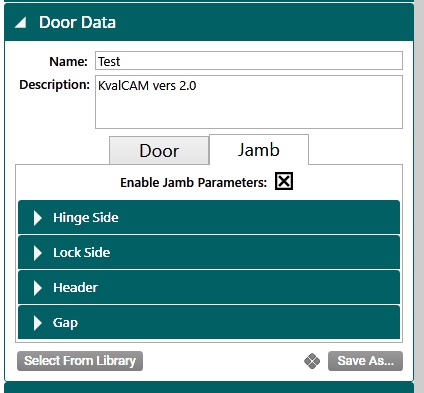
The properties are split into four sections:
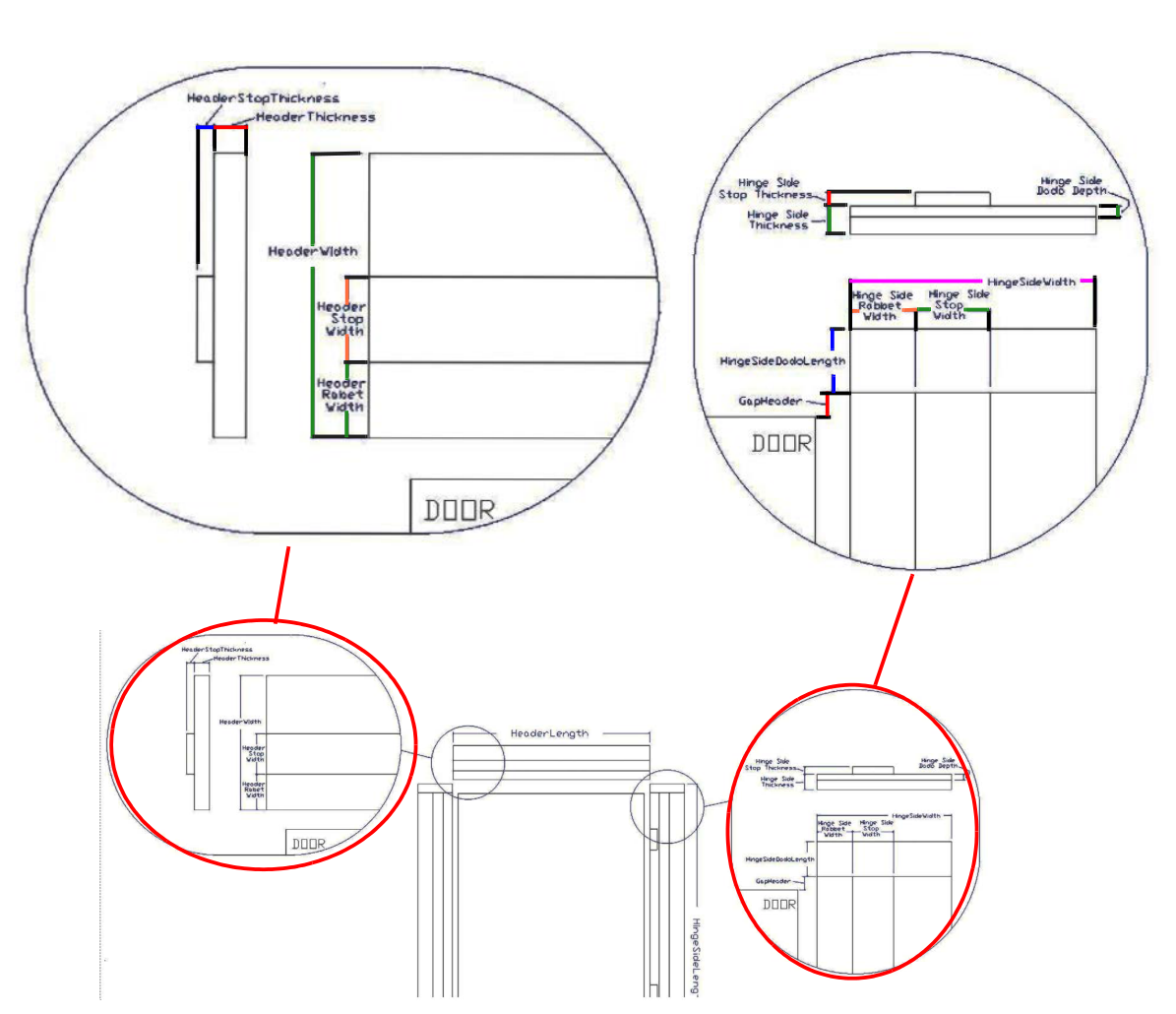
Hinge Side and Lock Side
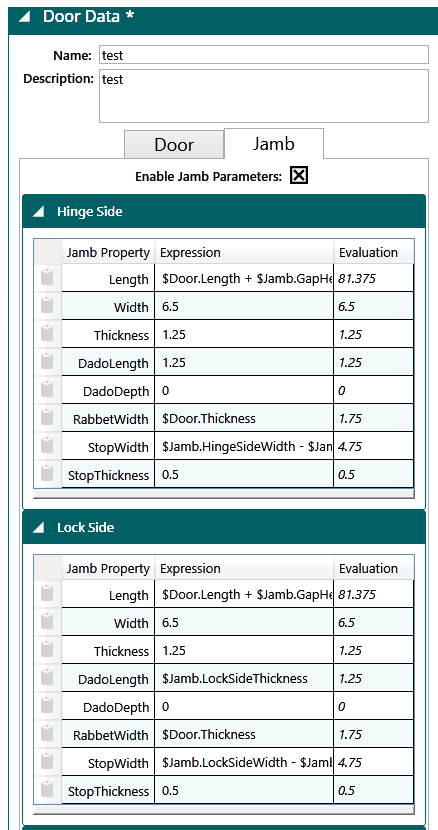
The hinge jamb and lock jamb have the same properties.
| Property | Description |
|---|---|
| Length | Length of the jamb |
| Width | Width of the jamb |
| Thickness | Thickness of the jamb |
| DadoLength | Length of the dado where the header meets the jamb |
| DadoDepth | Depth of the dado |
| RabbetWidth | Width of the rabbet the door closes into |
| StopWidth | Width of the door stop |
| StopThickness | Thickness of the door stop |
Header
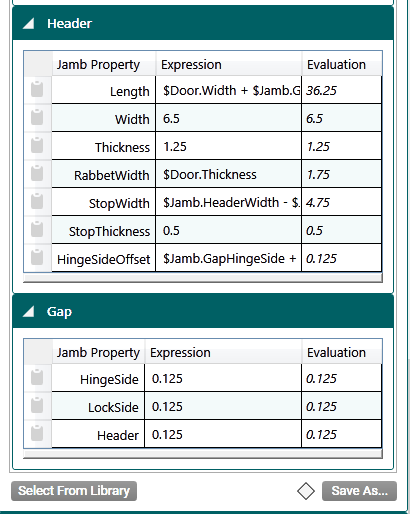
| Property | Description |
|---|---|
| Length | Length of the header |
| Width | Width of the header |
| Thickness | Thickness of the header |
| RabbetWidth | Width of the header's rabbet |
| StopWidth | Width of the header's door stop |
| StopThickness | Thickness of the header's door stop |
| HingeSideOffset | Offset of the header from the hinge side |
Gap
The gaps are the spaces between the closed door and the frame.
| Property | Description |
|---|---|
| HingeSide | Gap between the door and the hinge jamb |
| LockSide | Gap between the door and the lock jamb |
| Header | Gap between the door and the header |
Jamb Expressions
Jamb properties are referenced as $Jamb. followed by the section and property name, for example $Jamb.HingeSideWidth, $Jamb.HeaderRabbetWidth, or $Jamb.GapHingeSide. Jamb properties often refer to each other and to the door: in the tables above, each side jamb's length is $Door.Length plus the header gap.
| Expression | Description |
|---|---|
$Jamb.HingeSideWidth | Hinge jamb width |
$Jamb.HingeSideThickness | Hinge jamb thickness |
$Jamb.HingeSideDadoLength | Hinge jamb dado length |
$Jamb.HingeSideDadoDepth | Hinge jamb dado depth |
$Jamb.HingeSideRabbetWidth | Hinge jamb rabbet width |
$Jamb.LockSideWidth | Lock jamb width |
$Jamb.LockSideThickness | Lock jamb thickness |
$Jamb.LockSideDadoLength | Lock jamb dado length |
$Jamb.LockSideRabbetWidth | Lock jamb rabbet width |
$Jamb.HeaderWidth | Header width |
$Jamb.HeaderRabbetWidth | Header rabbet width |
$Jamb.GapHingeSide | Gap at the hinge side |
$Jamb.GapLockSide | Gap at the lock side |
$Jamb.GapHeader | Gap at the header |
Dados and Rabbets
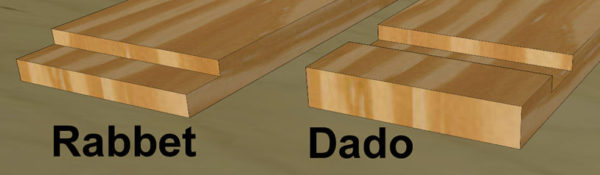
A dado is a slot cut across the surface of a jamb, perpendicular to the grain (a groove runs with the grain). The header sits in the dados at the top of the side jambs. A rabbet is a deep notch cut in or near the edge of a jamb; the door closes into it.
Loading Data From the Library
Select Select From Library on either tab to choose a Door Data file from the library. It brings in both the door and jamb data.

Saving Data to the Library
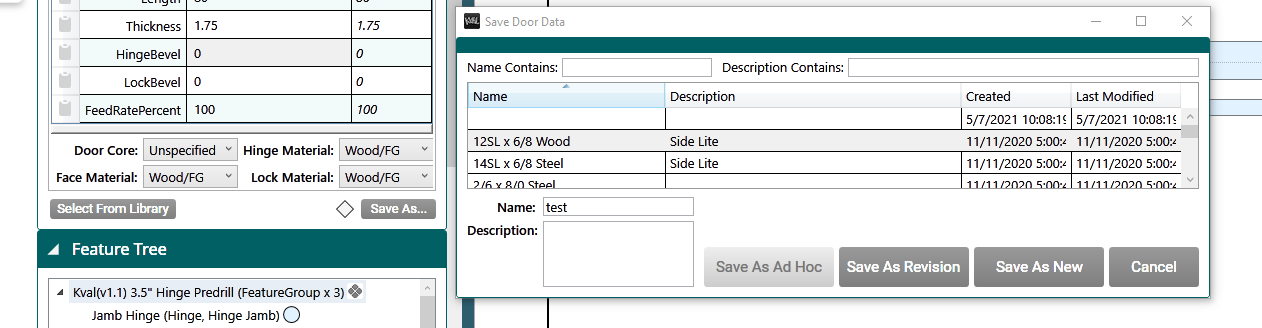
Select Save As... on either tab, then choose how to save:
- Save As New: saves a new Door Data file. Enter a name and description.
- Save As Revision: saves the changes as a new revision of an existing file. Select the file first.
- Save As Ad Hoc: keeps the changes in this Door Job only, without linking them to a library file. See Ad Hoc.
- Cancel: closes the window without saving.
TIP
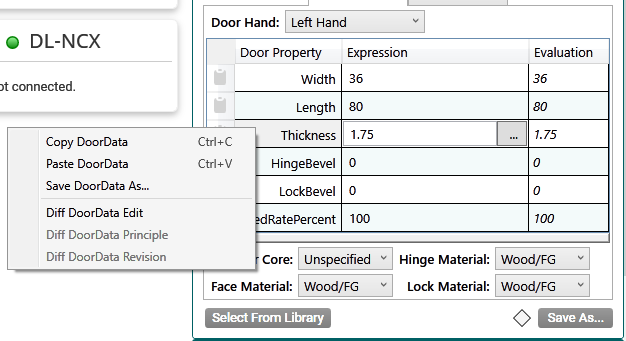
You can also right-click the property table and select Save DoorData As...
Copying Data
Each property row has a copy icon at its far left. Select it to copy the row's expression, then paste it wherever you need it, for example into a Feature's property. See Expressions.
TIP
To copy all the door data at once, right-click the property table and select Copy DoorData.