
Door Job Screen
The Door Job screen is where a Door Job is built: its name, the door it runs on, the cuts to make, and a 3D preview of the result.
- To create a Door Job, open the Door Job Library and select Create.
- To edit or view one, select it in the library and select Edit/View, or double-click it.
See Libraries for more about the library screens.
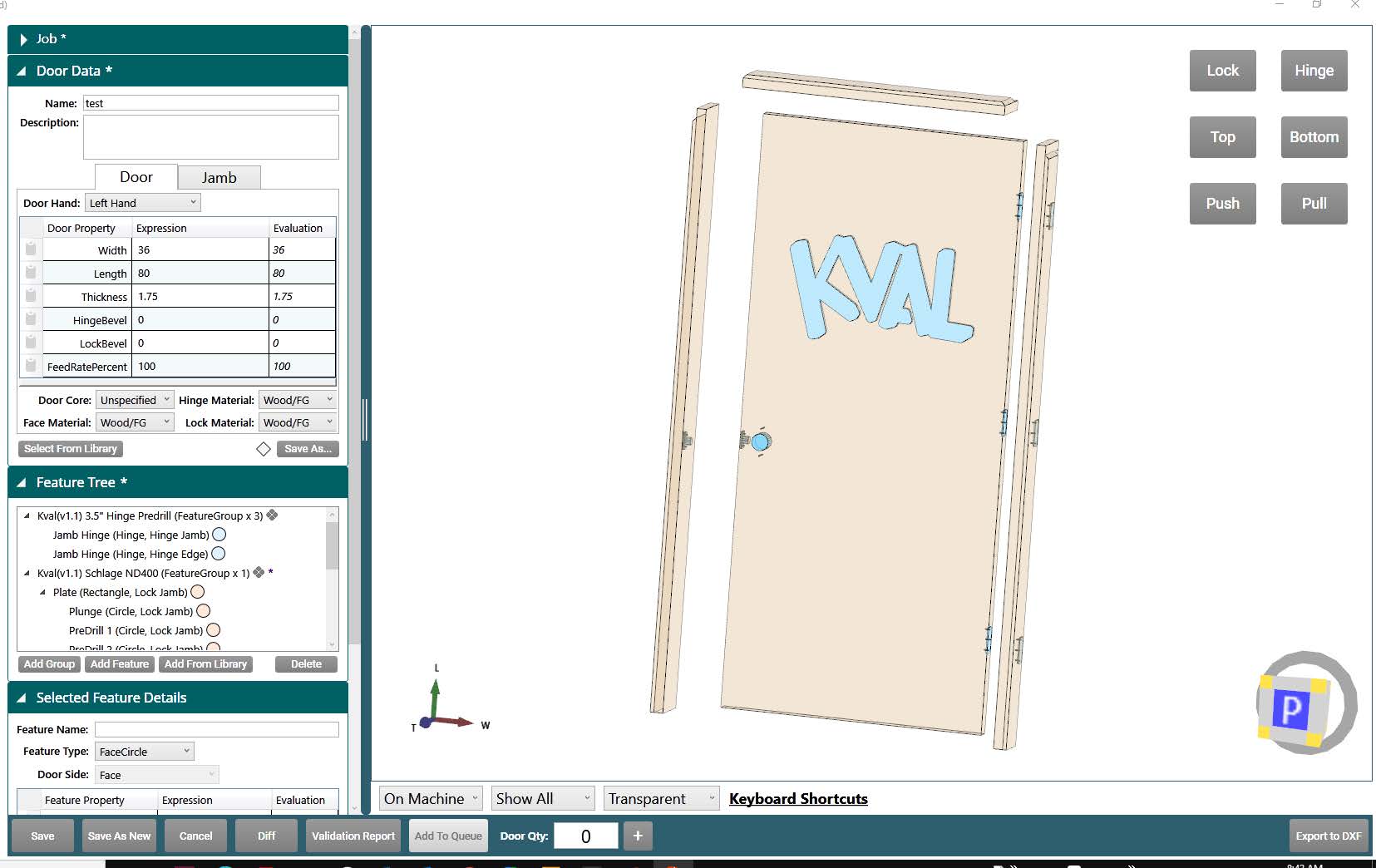
The screen is made up of:
- Job: the Door Job's name and description. See below.
- Door Data: the door, and optionally its jamb. See Door and Jamb Data.
- Feature Tree: the Feature Groups and Features to cut. See Feature Groups and Features.
- Selected Feature Details: the properties of the Feature Group or Feature selected in the tree. See Feature Groups and Features.
- Job Preview: an interactive 3D view of the door, jambs, and cuts. See Job Preview.
- Control buttons: along the bottom of the screen. See below.
TIP
For worked examples of lock, hinge, and face cuts, see Examples. If a Door Job won't validate, see Validation.
Job
Enter the Door Job's name in the Job Name box, and a description in the Job Description box, for example a customer, door size, or work order.
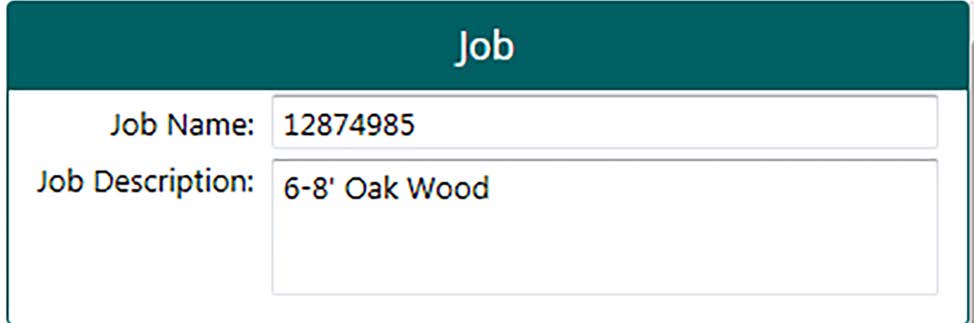
The name and description are shown in the Door Job Library, along with the date the job was created and last modified.
Control Buttons
The buttons along the bottom of the screen save and manage the Door Job, and send it to the machine line.
Save
Saves a new Door Job, or saves changes to an existing one. Saving may require a password.
Save As New
Saves the Door Job as a new file. Use this to make adjustments to an existing job without changing the original.
Cancel
Closes the Door Job screen without saving and returns to the library.
Diff
Compares files and highlights their differences. See Diff.
Validation Report
Opens a report of any errors in the Door Job. Use it to find and fix problems when a Feature fails validation. See Validation.
Add to Queue
Sends the Door Job to the machine line. This is the first step of processing doors.
- Enter the number of doors to process in the Door Qty box. Use the + button to add one at a time.
- Select Add to Queue.
KvalCAM switches to the Machine Line screen, where you can follow the doors through the line. Add to Queue is only available when every Feature in the job passes validation.
Export to DXF
Exports the Door Job as a .dxf blueprint. Open the file in a CAD program that reads DXF files, such as AutoCAD® or DraftSight®, and use it to share the job for review.