
Job Preview
The Job Preview on the right of the Door Job screen is an interactive 3D view of the door, its jambs, and every cut in the job. Use it to check the job before cutting: rotate and zoom around the door, view it as it sits on the machine or as it will hang in the building, and spot errors highlighted in color.
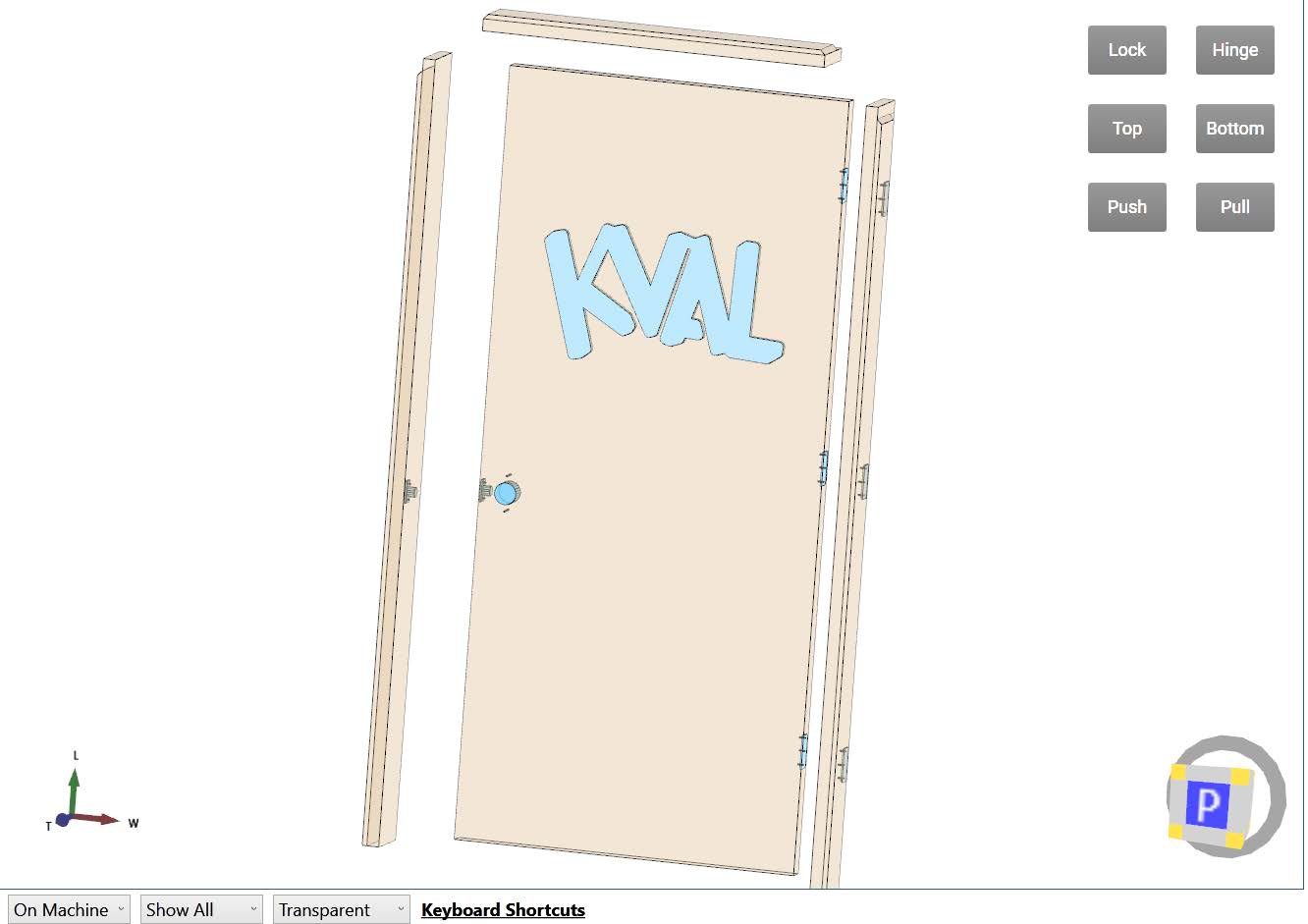
- Display: the 3D view of the door assembly.
- View buttons: turn the view to a standard side. See View Buttons.
- View cube: shows which side you're looking at, and turns the view when selected. See The View Cube.
- Axis icon: shows the door's L (length), W (width), and T (thickness) axes.
- Bottom buttons: change how the assembly is displayed. See Display Options.
The View Cube
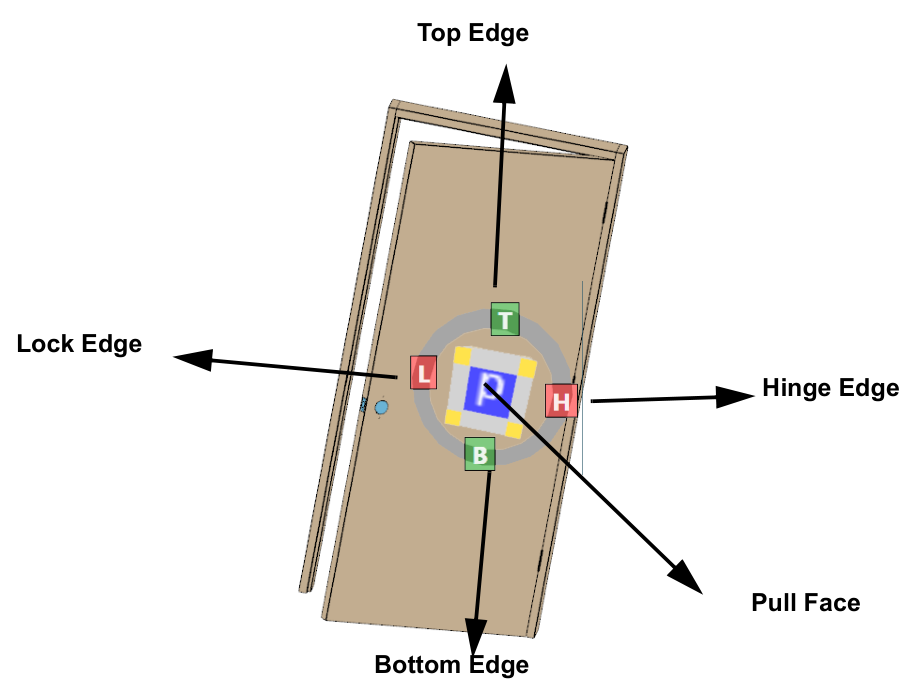
The view cube in the lower right corner turns with the door. Each face has a letter for the side of the door it represents:
| Letter | Side |
|---|---|
| H | Hinge edge |
| L | Lock edge |
| T | Top edge |
| B | Bottom edge |
| P | Pull face |
| S | Push face |
Select a face to turn the view to that side. Select an edge or corner of the cube for the view from that angle. Letters around the edges of the cube name the neighboring sides.
The ring around the cube marks its bottom: the low side of the door's T (thickness) axis.
Color Coding
Features in the preview are colored to match the Feature Tree:
- Dark blue: the selected Feature.
- Light blue: the other Features in the Door Job.
- Orange: a validation error. The machine line can't make the cut.
- Red: an evaluation error. A property's expression can't be evaluated to a number.
When something fails, a message also appears in the preview:

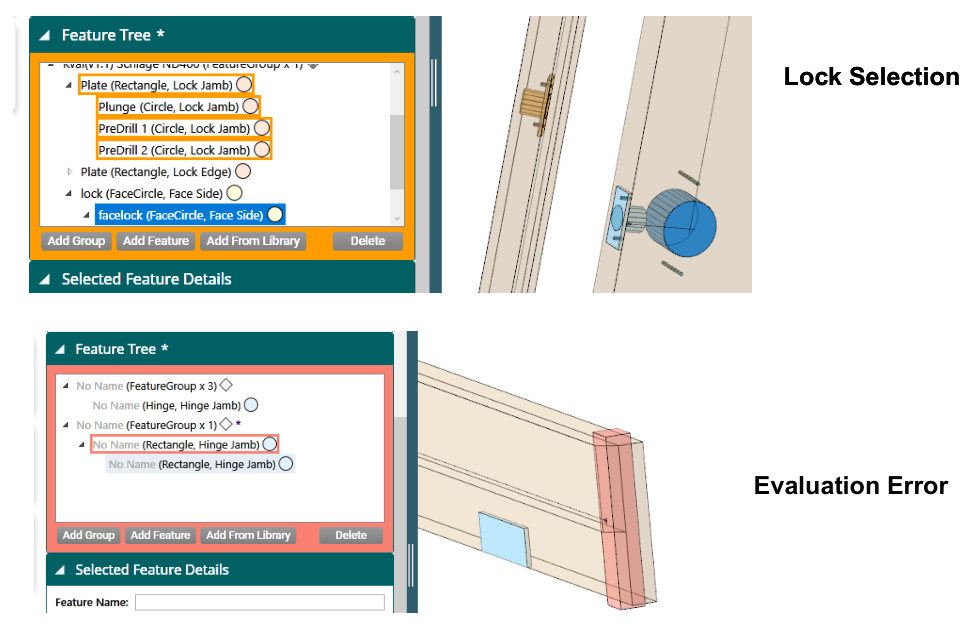
See Validation for how to find and fix errors.
Display Options
The buttons along the bottom of the preview change how the door assembly is displayed.
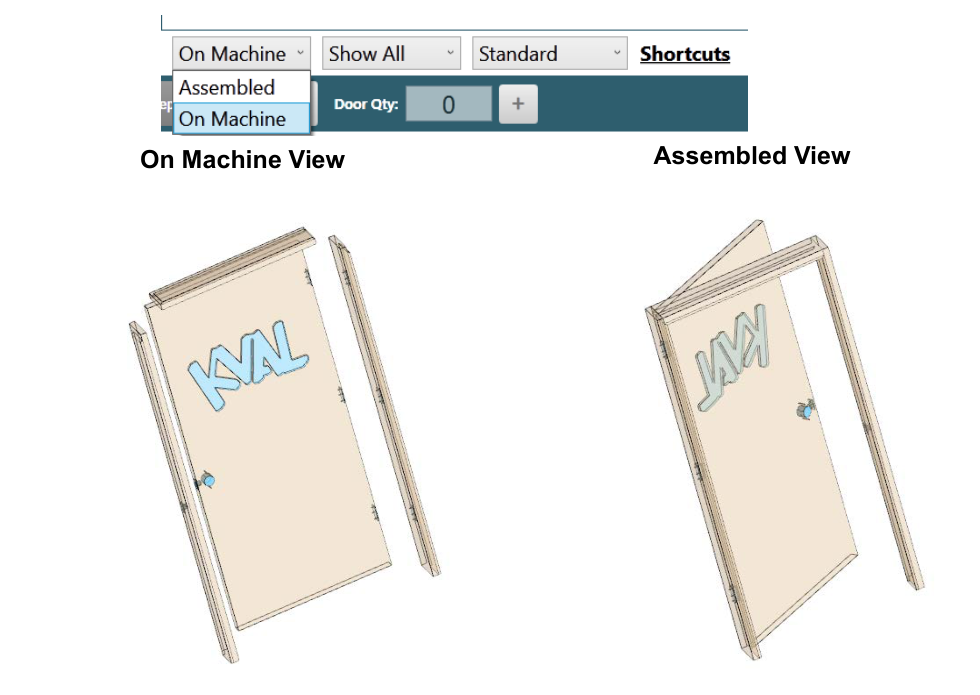
On Machine and Assembled
- On Machine (the default): the door, jambs, and header are shown as separate parts, the way they're made.
- Assembled: the parts are shown together, as the door will hang in the building. The pull side always faces up, in the positive T direction, whatever the door's hand.
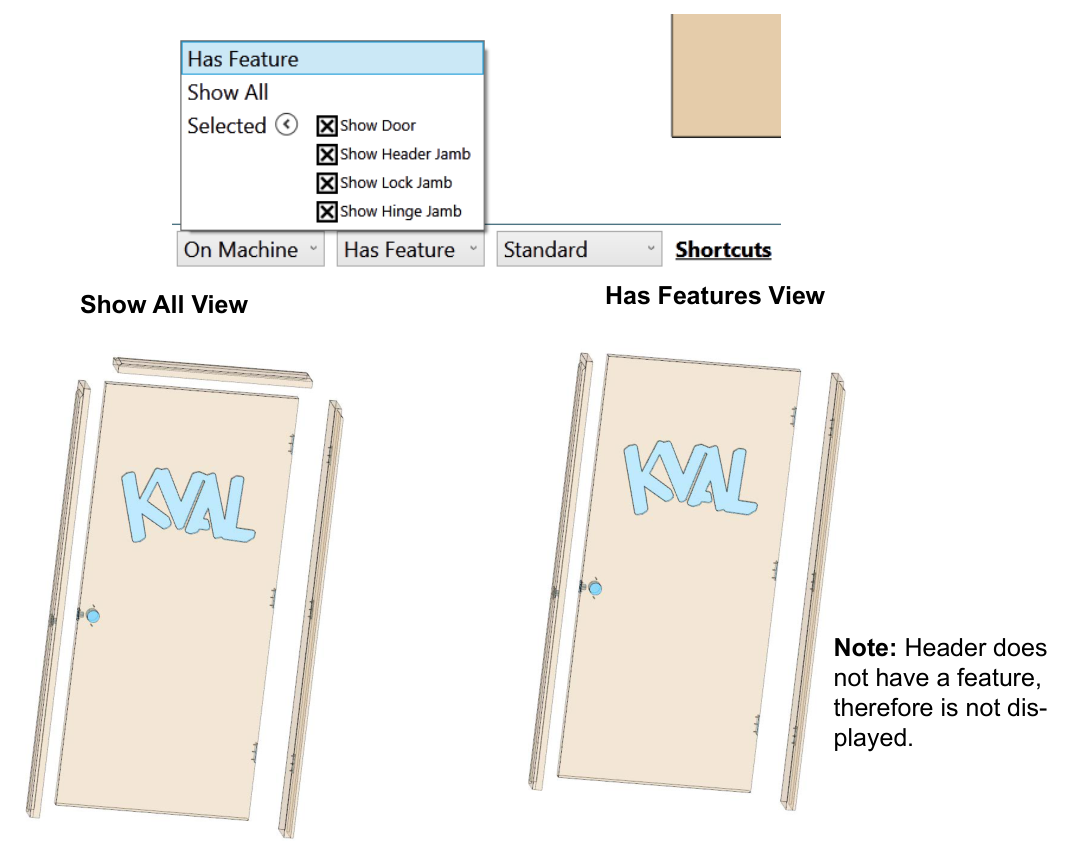
Has Feature, Show All, and Selected
- Has Feature (the default): only shows parts that have at least one Feature.
- Show All: shows every part, whether or not it has Features.
- Selected: shows only the parts checked in the list below it. Select the arrow next to Selected to expand or collapse the list.
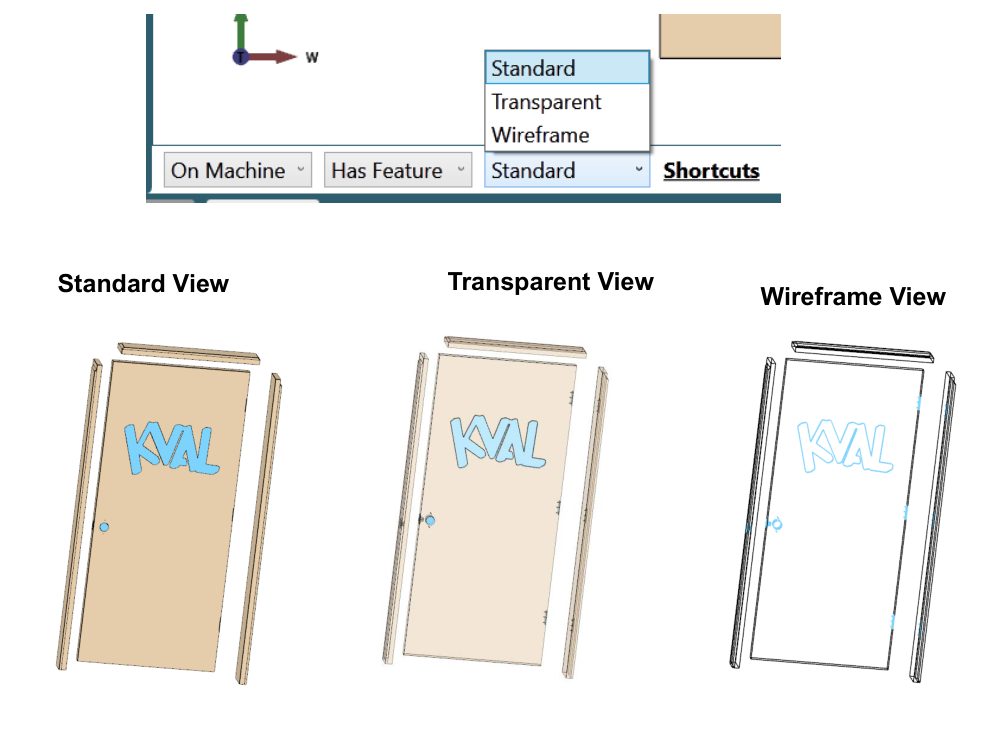
Standard, Transparent, and Wireframe
- Standard (the default): solid parts, with their Features visible.
- Transparent: see-through parts, so you can see Features through the door.
- Wireframe: the parts as line drawings.
View Buttons
The view buttons in the upper right turn the view straight to one side of the door assembly. The axis icon and view cube turn to match. Hover over a button to see what it does.
| Button | Views the assembly from |
|---|---|
| Lock | The lock edge |
| Hinge | The hinge edge |
| Top | The top edge |
| Bottom | The bottom edge |
| Push | The push face |
| Pull | The pull face |
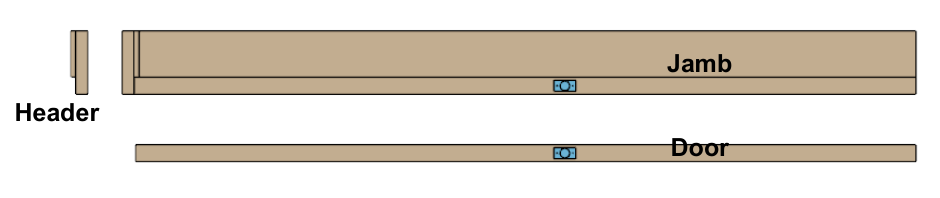
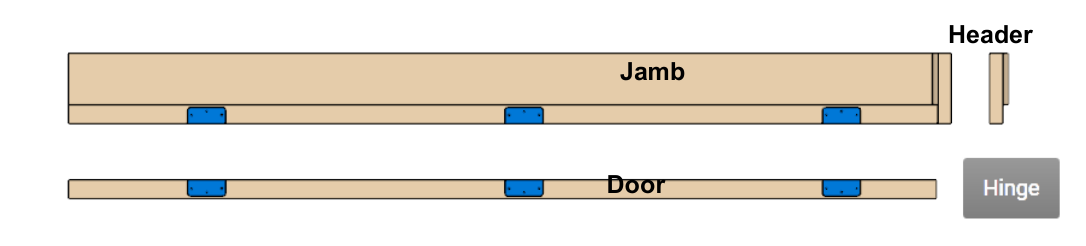
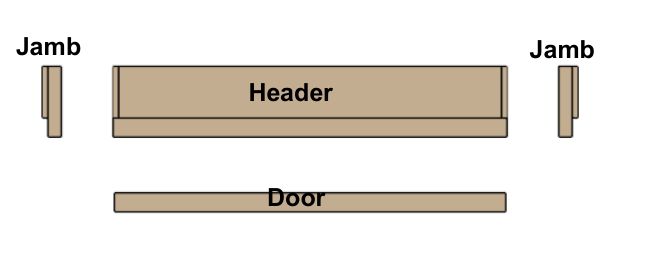
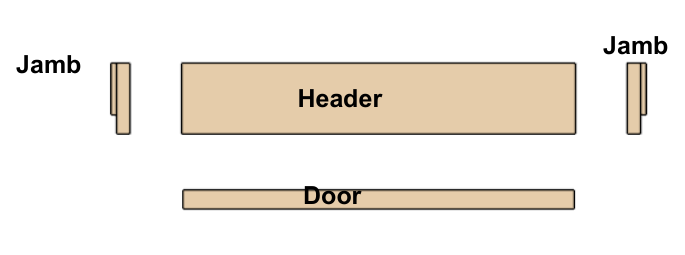
The examples below are in the Standard and On Machine modes.
| Lock | Hinge |
|---|---|
 |  |
| Top | Bottom |
|---|---|
 |  |
Push and Pull Views
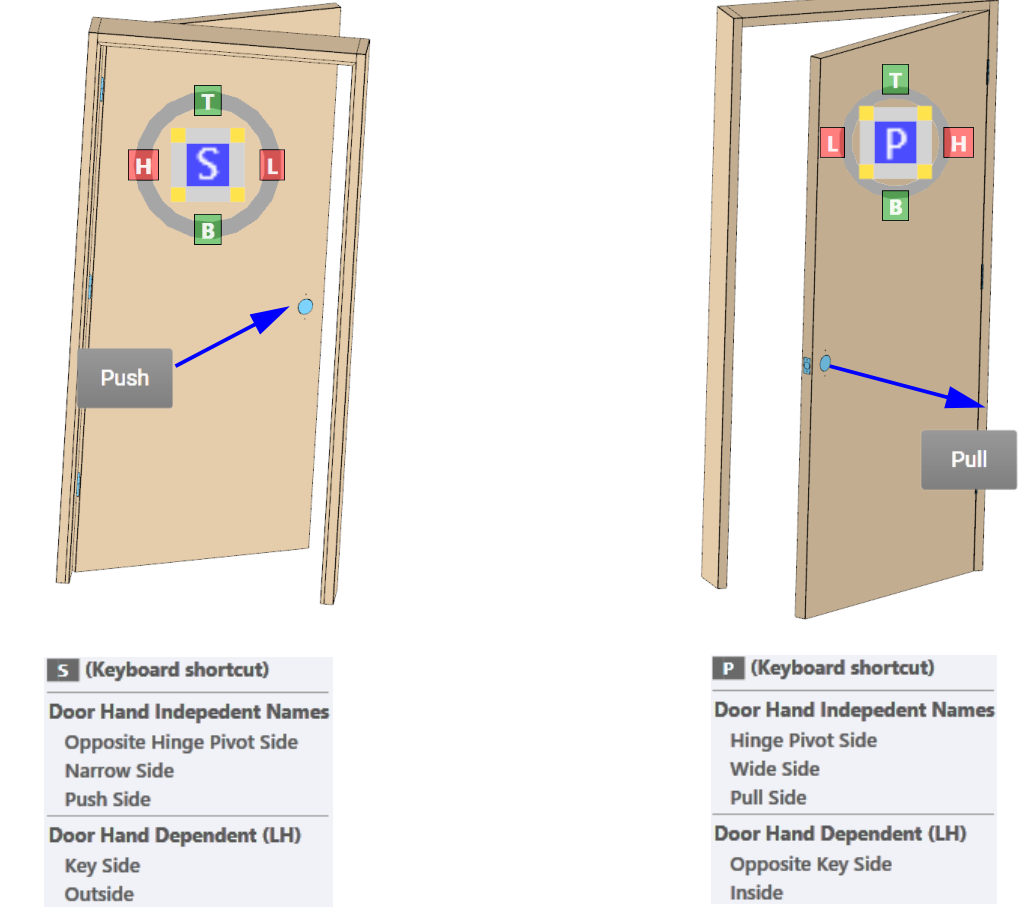
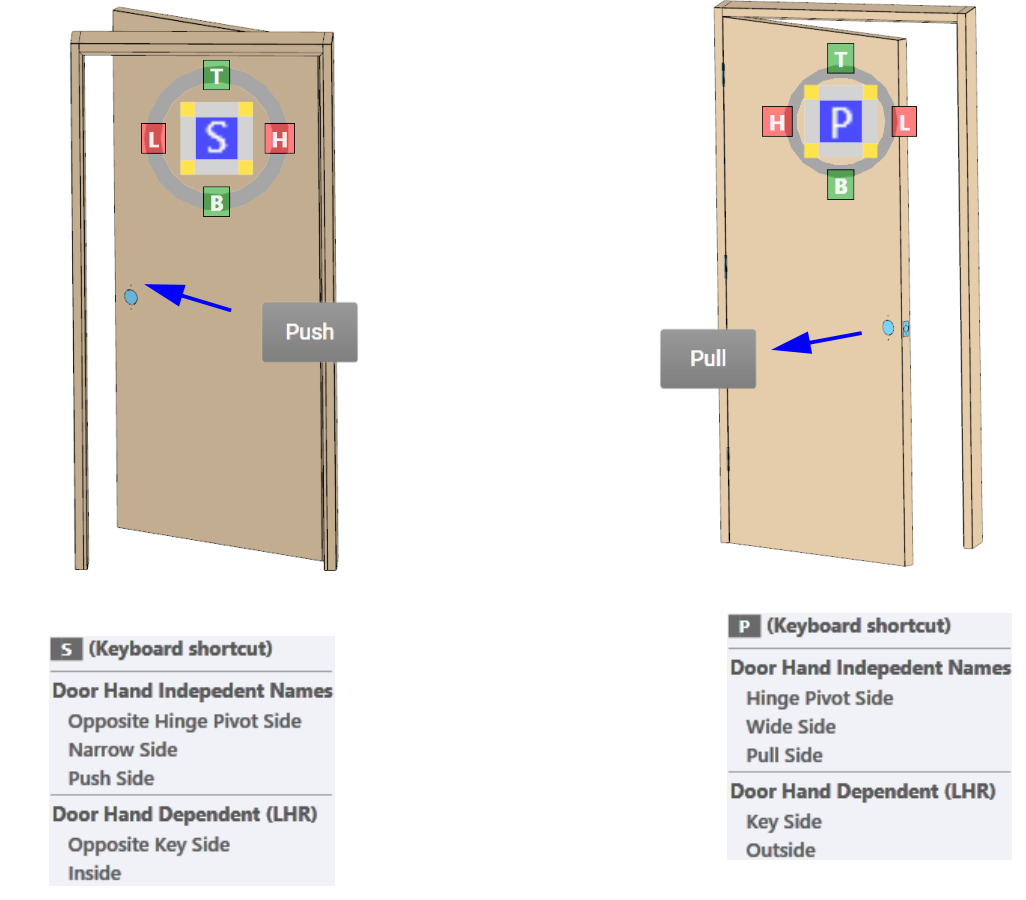
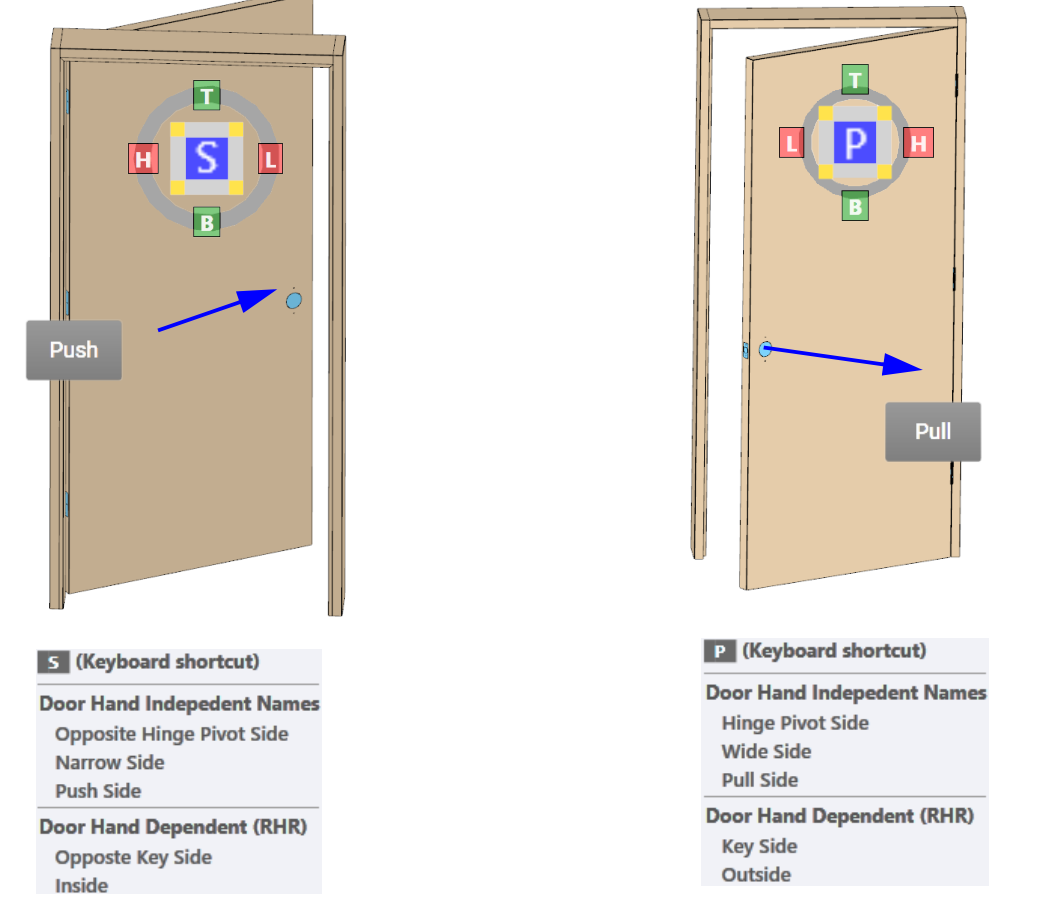
Which face is the push side and which is the pull side depends on the door's hand, set in the Door Data. The images below show each hand from both sides, with the other names each face goes by. See Door Handing.
Right Hand
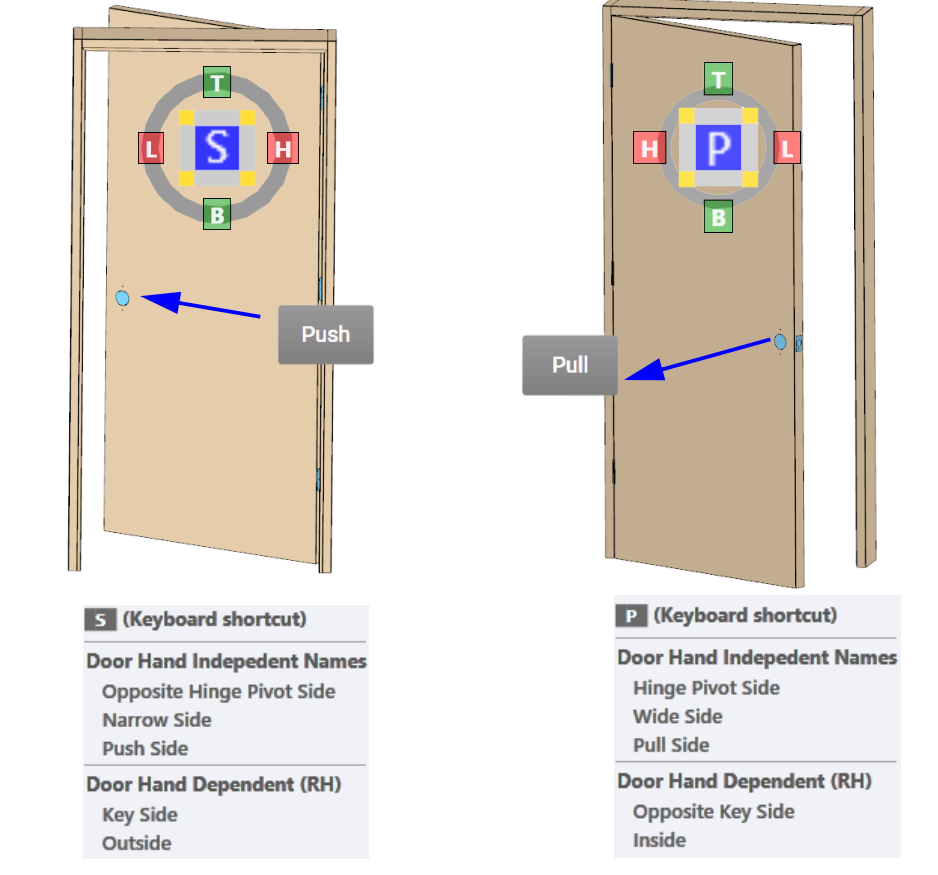
Left Hand
Left Hand Reverse
Right Hand Reverse
Mouse Controls
| Action | Result |
|---|---|
| Left-click | Selects a Feature, highlighting it in the preview and the Feature Tree |
| Middle-click and drag | Pans the view |
| Scroll wheel | Zooms in (up) or out (down), centered on the pointer |
| Right-click and drag | Rotates the view. See below |
| Ctrl + left-click and drag | Zooms to the rectangle you draw |
When you right-click on or near the door, the closest point becomes the center of rotation, marked with a small axis marker. Right-click empty space to rotate around the center of the model instead.
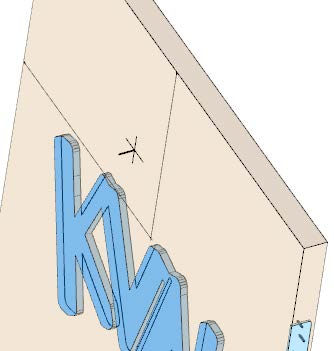
NOTE
In 2D Lock mode (Ctrl + 2), right-click and drag pans the view instead of rotating it.
Keyboard Shortcuts
Hover over Shortcuts in the bottom bar to see the shortcuts, or select it to keep the list open. Select it again to close it.
Standard Views
| Key | View |
|---|---|
| L | Lock edge |
| H | Hinge edge |
| T | Top edge |
| B | Bottom edge |
| P | Pull face |
| S | Push face |
| I | Isometric perspective |
View Controls
| Keys | Action |
|---|---|
| F | Zoom to fit |
| Z | Zoom out, from the center |
| Shift + Z | Zoom in, toward the center |
| R | Rotate in plane, clockwise |
| Shift + R | Rotate in plane, counterclockwise |
| Ctrl + 2 | Toggle 2D lock |
| Ctrl + A | Toggle view animation |
| Ctrl + left-click and drag | Zoom to the rectangle you draw |