
Feature Groups and Features
The cuts in a Door Job are organized like an outline in the Feature Tree:
- A Feature Group is the top level. Also called a group or template, it's a container for one or more cuts, and it sets where those cuts go on the door. A Feature Group can repeat its cuts at several locations, for example three hinges.
- A Feature is a single cut, such as a rectangular lock plate or a predrill hole. Features belong to a Feature Group, and a Feature can have child Features of its own. Children inherit their parent's location, so their positions are relative to it.
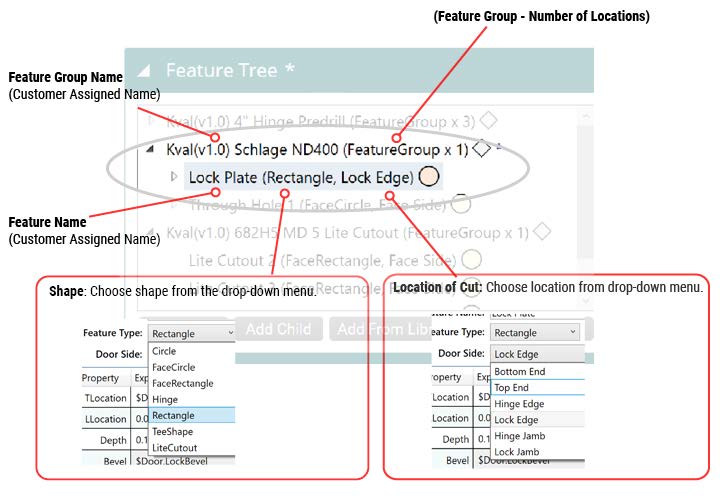
Each line in the tree shows the name you gave it, followed by its type in parentheses:
- A Feature Group shows how many locations it's cut at:
Schlage ND400 (FeatureGroup x 1). - A Feature shows its Feature Type and door side:
Lock Plate (Rectangle, Lock Edge).
Feature Groups can be saved to the Feature Group Library and reused in many Door Jobs.
The Feature Tree
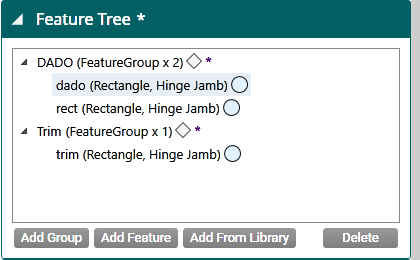
- Add Group: adds a new Feature Group.
- Add Feature: adds a Feature as a child of the selected Feature Group or Feature.
- Add From Library: adds a Feature Group from the Feature Group Library.
- Delete: deletes the selected Feature Group or Feature.
Tips
- Color-coded indicators: the circle next to each Feature is colored by where it is on the door: hinge edge, lock edge, hinge pivot face, opposite hinge pivot face, top end, or bottom end.
- Library icons: the diamond next to each Feature Group shows whether it's Ad Hoc, a Library Principle, or a variant. See How Door Jobs Use Library Files.
- Validation: a Feature that fails validation is outlined in orange or red in the tree. See Validation.
- Cut, copy, and paste: right-click a Feature Group or Feature and select Cut or Copy. Then right-click where you want it in the tree and select Paste.
Feature Group Details
Select a Feature Group in the tree to edit it in the Selected Feature Details panel. Every Feature Group has its own L (length), W (width), and T (thickness) location, separate from the Features inside it. Moving the group moves all of its Features.
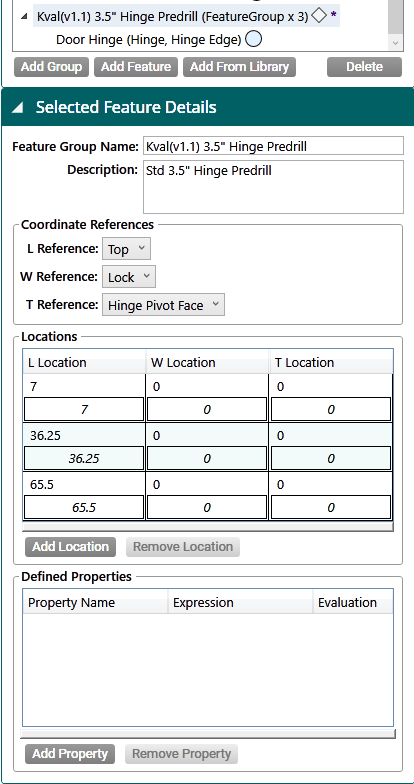
Feature Group Name and Description
The name is required when saving a new Feature Group to the library. Use the description to explain what the group is for.
Coordinate References
The coordinate references set which edges and face the group's locations are measured from. The references you choose are shown in the Job Preview.
| Reference | Options |
|---|---|
| L Reference (length) | Top, Bottom |
| W Reference (width) | Lock, Hinge |
| T Reference (thickness) | Hinge Pivot Face, Key Face, Opposite Key Face, Opposite Hinge Pivot Face |
See Door Handing for which face is which.
Locations
The Locations table lists where the group's cuts are made. Each row is one location, with an L Location, W Location, and T Location measured from the coordinate references. The group's Features are cut once at every location.
In the example above, the hinge cuts are made at 7″, 36.25″, and 65.5″ from the top of the door. Use Add Location and Remove Location to change the list.
Defined Properties
A defined property is a custom value you name once and use in all of the group's Features. Use one for a value you change often, so you only have to change it in one place.
- Select Add Property.
- Enter a Property Name and an Expression. Errors are flagged as you type.
- In a Feature's properties, refer to it with a
#in front of its name, for example1 + #MyProperty.
See Expressions.
Feature Details
Select a Feature in the tree to edit it in the Selected Feature Details panel.
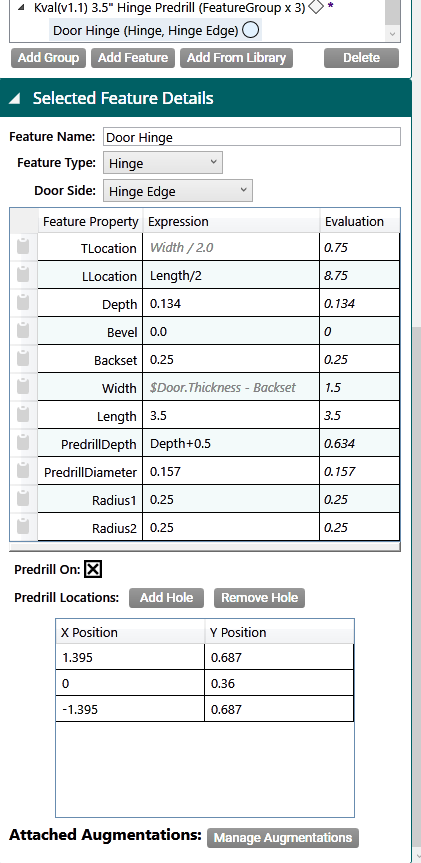
- Feature Name: the name shown in the tree.
- Feature Type: the shape to cut: Circle, FaceCircle, FaceRectangle, Hinge, Rectangle, TeeShape, FaceProfile, or LiteCutout. See Feature Types.
- Door Side: where the cut is made: Bottom End, Top End, Hinge Edge, Lock Edge, Hinge Jamb, Lock Jamb, or Header Jamb for edge features, or Face for face features. See Feature Types.
- Properties table: the cut's dimensions and position. Each property is an expression; the Evaluation column shows its value. Select the copy icon at the left of a row to copy its expression.
- Feature-specific settings: some types have extra settings below the table, such as the hinge's predrill holes.
- Manage Augmentations: attaches augmentations to the Feature. Augmentations are created by Kval to help with common cuts.
For the properties of each type, see Feature Types. For complete worked examples, see Examples.