
Profile Editor
The FaceProfile and LiteCutout feature types cut a custom shape imported from a DXF (Drawing Exchange Format) file. The shape is drawn and adjusted in the Profile Editor.
- FaceProfile engraves the shape into the face of the door to a set depth.
- LiteCutout cuts the shape all the way through the door, for example for a door lite.
FaceProfile and LiteCutout Compared
On the Door Job screen, both types are positioned with WLocation and LLocation. Only FaceProfile has a depth, since a LiteCutout always cuts through.
| FaceProfile | LiteCutout |
|---|---|
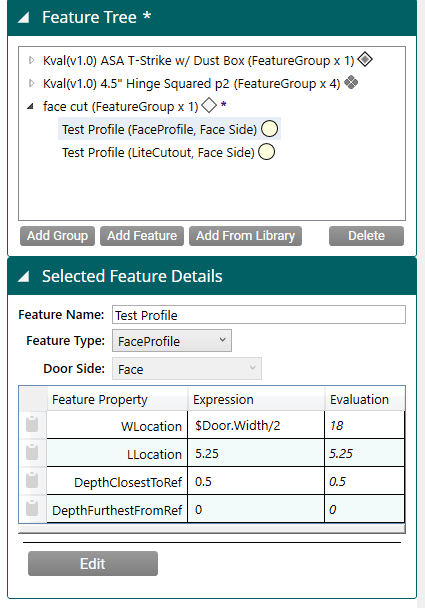 | 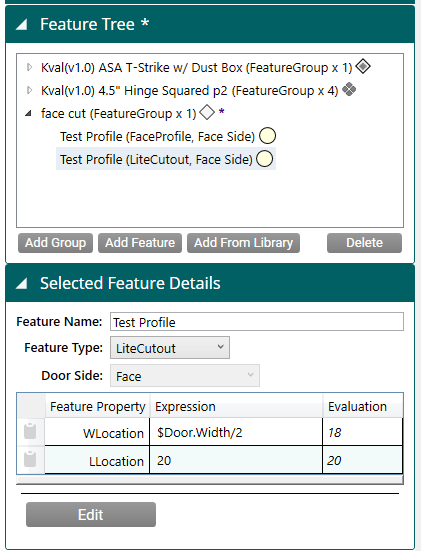 |
In the editor, LiteCutout has extra controls for cutting through the door:
| Editor feature | FaceProfile | LiteCutout |
|---|---|---|
| Error checking | Yes | Yes |
| View settings | Yes | Yes |
| Maximum tool diameter | Yes | Yes |
| Offset profile | Yes | Yes |
| Weed vertexes | Yes | Yes |
| Plunge point | No | Yes |
| Start point | No | Yes |
| Knockout points | No | Yes |
Adding a Profile
- In the Feature Tree, add a Feature Group if you need one, then select Add Feature.
- Enter a Feature Name, and set Feature Type to FaceProfile or LiteCutout. Door Side is set to Face automatically.
- Select Edit to open the Profile Editor.
- Select Import DXF and choose the DXF file.
- Adjust the shape if needed, then select OK to return to the Door Job screen.
- Set the Feature's WLocation and LLocation, and for a FaceProfile its depth. See Feature Types.
The Editor Screen
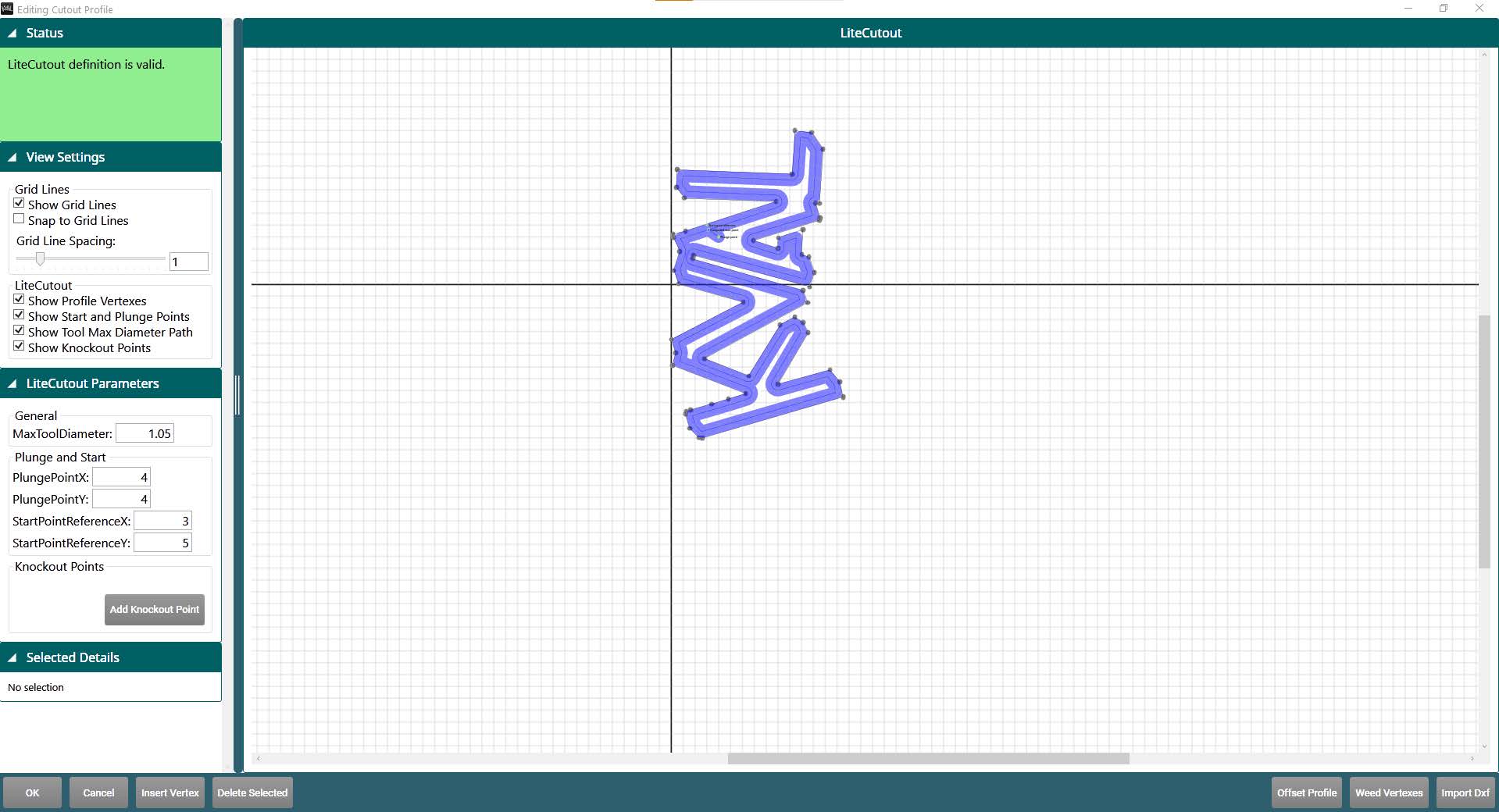
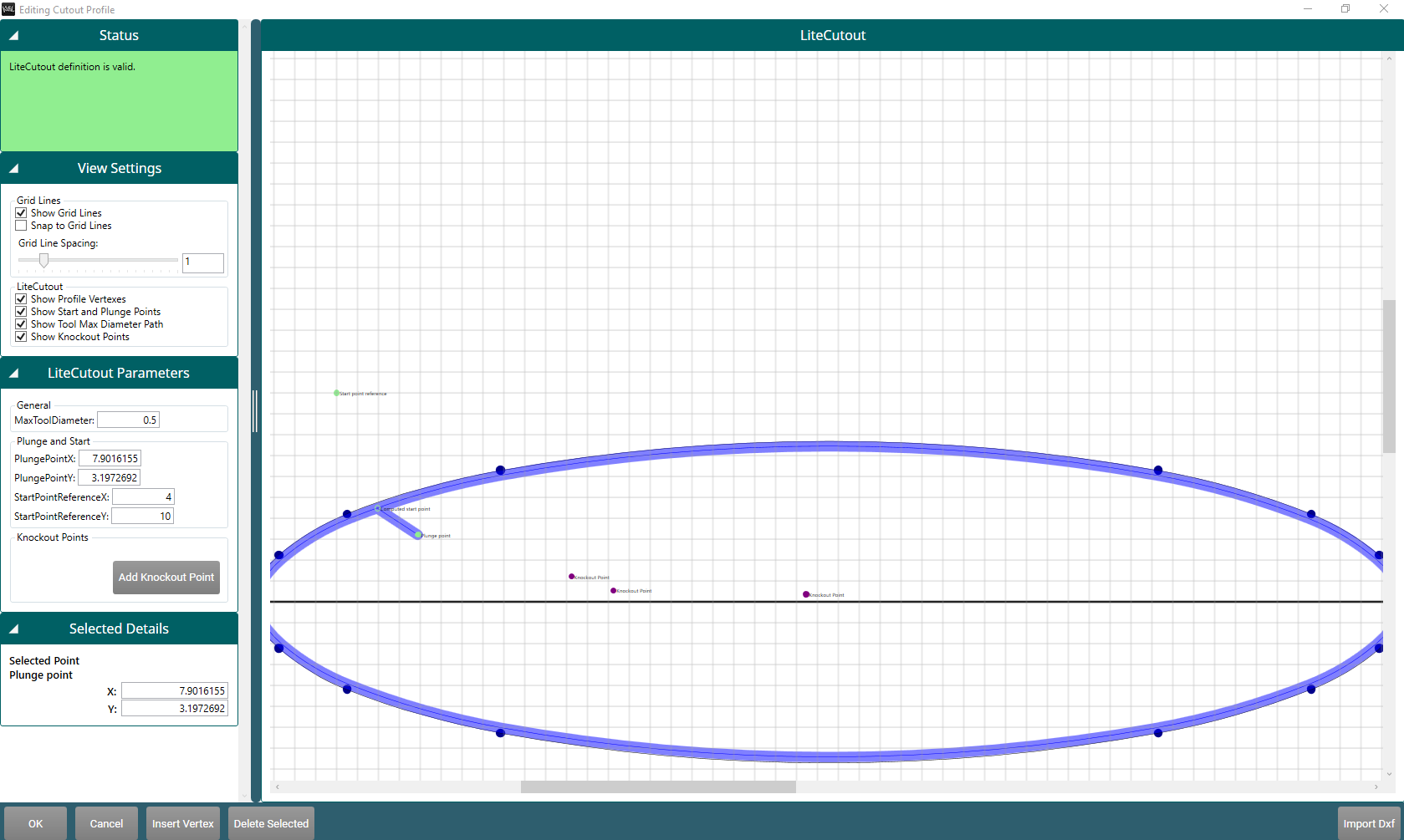
- Control panels on the left: status, view settings, and cutting parameters.
- Work area: the imported shape, which you can view and edit.
- Task bar along the bottom: import, edit, and finish.
Status
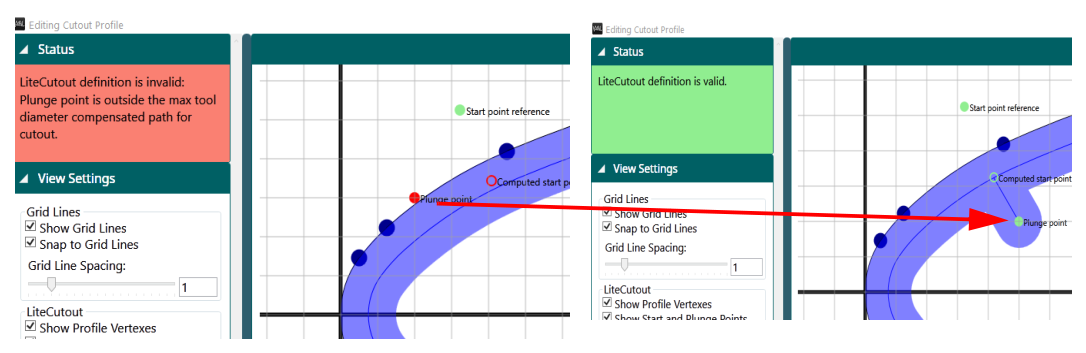
The Status panel checks the shape as you work. A green background means the shape is valid; red means there's an error, with a description.
In this example, the plunge point is outside the cutting path. Moving it inside fixes the error:
View Settings
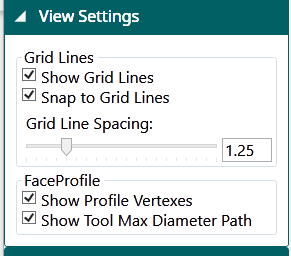
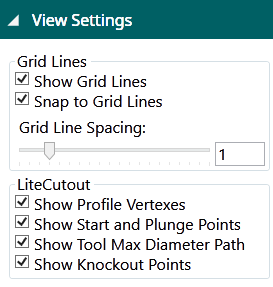
The View Settings panel changes what's shown in the work area: grid lines and their spacing, snapping to the grid, the profile's vertexes, and the tool path at the maximum tool diameter. LiteCutout can also show its start, plunge, and knockout points.
| FaceProfile | LiteCutout |
|---|---|
 |  |
Parameters
The Parameters panel controls how the shape is cut.
| FaceProfile | LiteCutout |
|---|---|
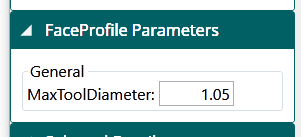 | 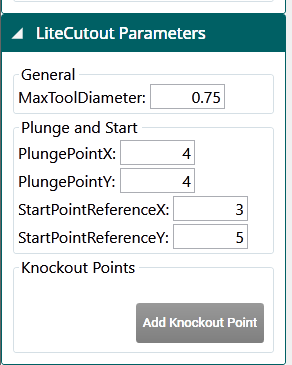 |
- MaxToolDiameter: the largest tool allowed for the cut. Only tools smaller than this, including their calibration, are used. KvalCAM shapes the cut for this size, so it comes out the same whichever tool runs it. A larger value allows larger tools but rounds off small details. Allow a little extra for calibration: to run a 1″ tool, use about 1.01.
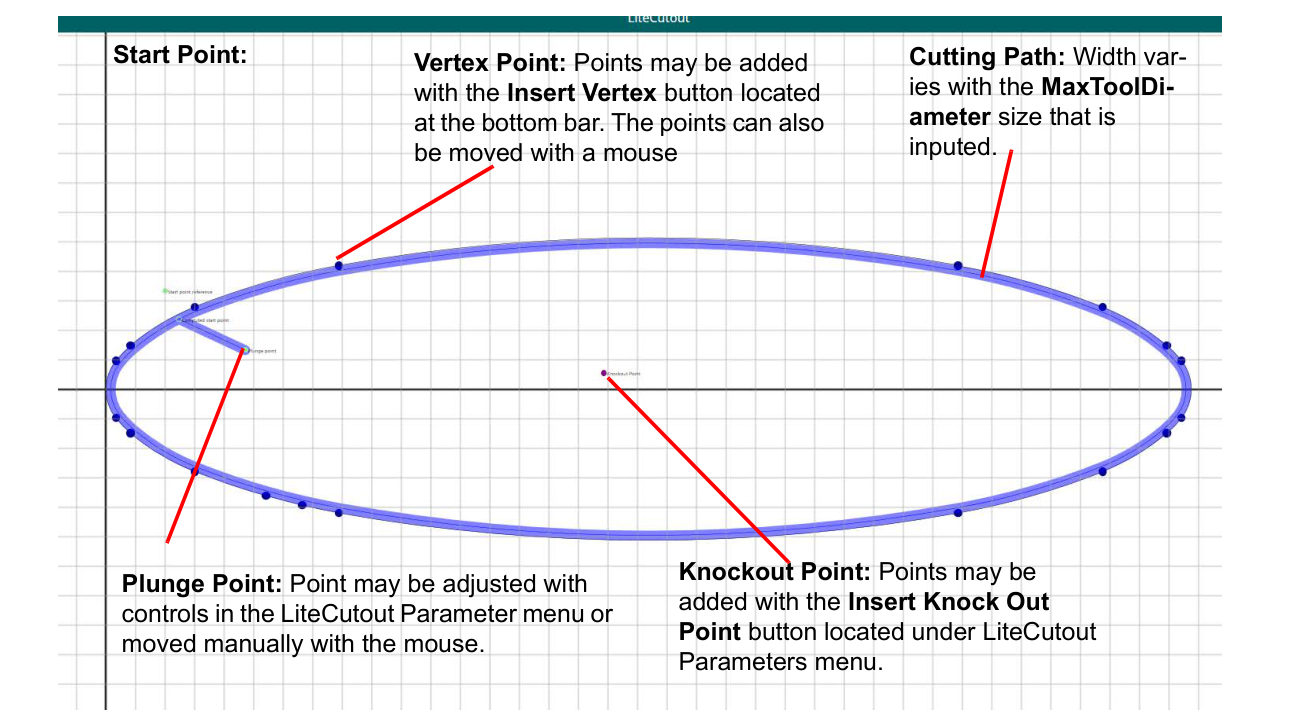
- PlungePointX, PlungePointY (LiteCutout): where the tool plunges into the door before moving to the cutting path. It must be inside the cutting path.
- StartPointReferenceX, StartPointReferenceY (LiteCutout): the point on the cutting path closest to this reference is where the cut starts and ends.
- Add Knockout Point (LiteCutout): adds points where the knockout cylinder pushes the cut-out slug free, for foam core doors. Knockout points must be well inside the cutting path.
Work Area
The work area shows the imported shape.
- Zoom in and out with the mouse wheel.
- Scroll the shape with the horizontal and vertical scroll bars.
- Select a vertex (a point on the cutting path) and drag it to change the shape. The plunge point can also be dragged.
Coordinates
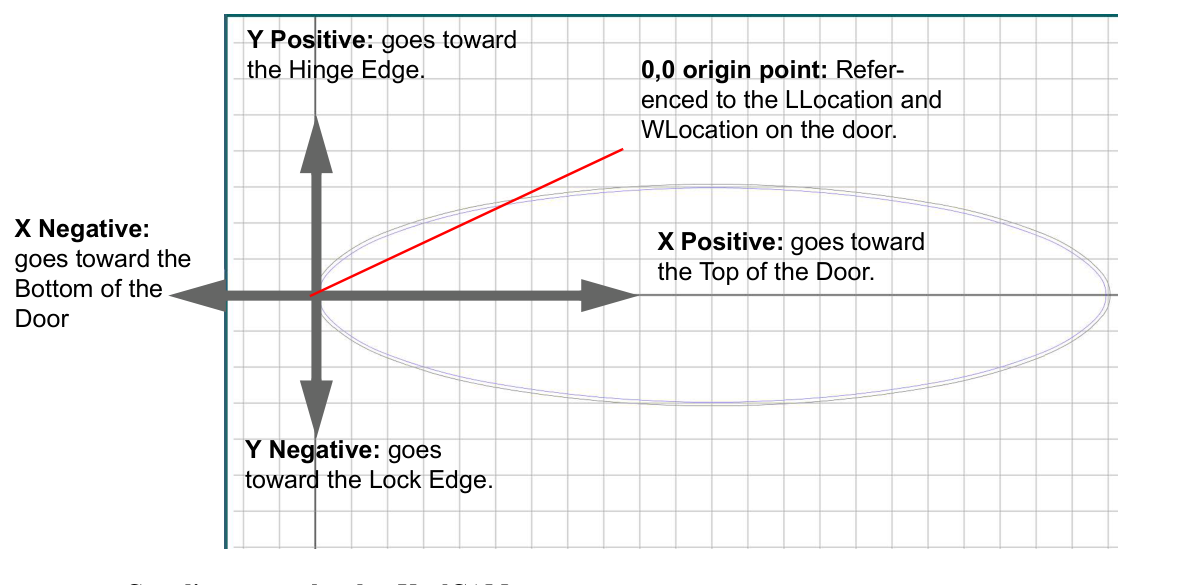
The shape's 0,0 origin is placed at the Feature's LLocation and WLocation on the door. The axes are always oriented to the door's edges, so the same shape works on any door hand and any face-cutting machine:
- X positive goes toward the top of the door; X negative toward the bottom.
- Y positive goes toward the hinge edge; Y negative toward the lock edge.
Task Bar

- Import DXF: imports a DXF file. This is usually the first step.
- OK: saves your changes, closes the editor, and shows the shape in the Job Preview.
- Cancel: closes the editor without saving.
- Insert Vertex: select a vertex on the cutting path, then select Insert Vertex to add a new vertex next to it.
- Delete Selected: deletes the selected vertex or knockout point.
- Offset Profile: moves the whole cutting path inward or outward. See below.
- Weed Vertexes: removes extra vertexes. See below.
Offset Profile
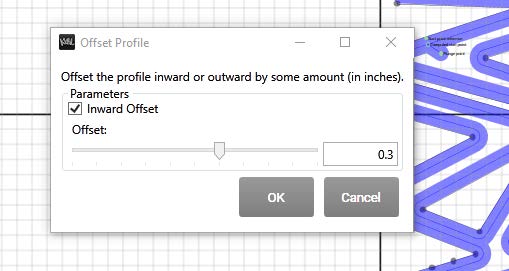
- Select Offset Profile.
- Select Inward Offset to move the path inward, or clear it to move the path outward.
- Set the offset with the slider or the box, from 0″ to 0.5″.
- Select OK.
Weed Vertexes
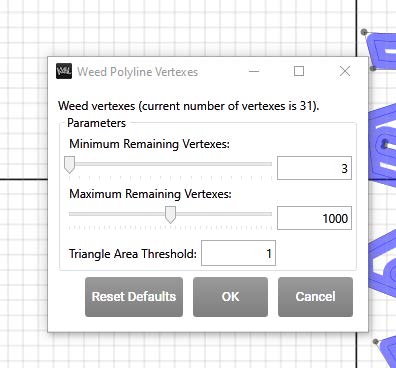
DXF files sometimes have far more vertexes than a shape needs. Weed Vertexes removes some of them.
- Select Weed Vertexes. The window shows the current number of vertexes.
- Adjust the settings with the sliders or boxes:
- Minimum Remaining Vertexes: the vertex count never goes below this.
- Maximum Remaining Vertexes: the vertex count ends up at or below this.
- Triangle Area Threshold: a vertex is removed when the triangle it forms with its two neighbors has an area, in square inches, smaller than this.
- Select OK to weed the vertexes, Cancel to stop, or Reset Defaults to restore the default settings.
NOTE
Weeding doesn't support polylines with arcs. If the shape has them, an error message is shown. Select OK to close it.