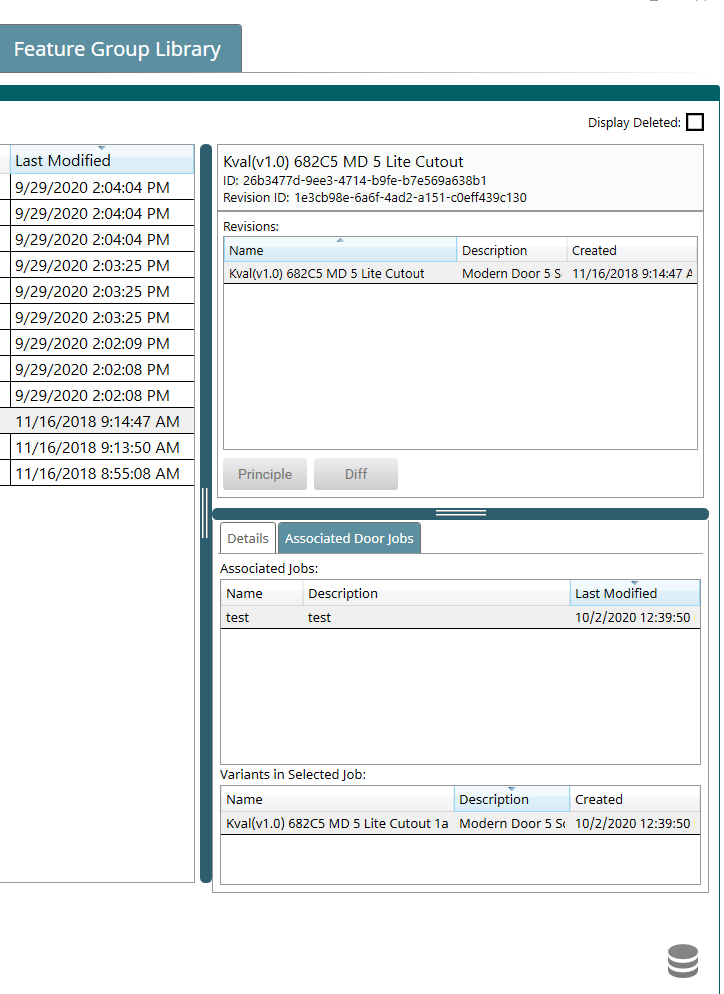
Revisions
Every time you save changes to an existing Door Job, Door Data, or Feature Group file in the library, KvalCAM creates a revision. Revisions are save points in the file's editing history.
The Principle revision is the current one. For Door Data and Feature Groups, it's the current save point. For a Door Job, it's the version loaded into the Door Job editor.
The Revision Pane
Each library has a revision pane on the right of the file table. It's hidden by default: hover over the table's right border until the pointer changes, then drag the border to the left.
The pane lists the selected file's revisions and has two buttons:
- Principle: makes the selected revision the Principle.
- Diff: compares two revisions. See Diff.
Changing the Principle Revision
Normally the top revision in the table is the Principle, but any revision can be made the Principle.
- Select the revision in the revision table.
- Select the Principle button.
- The revision is highlighted in green and becomes the Principle.
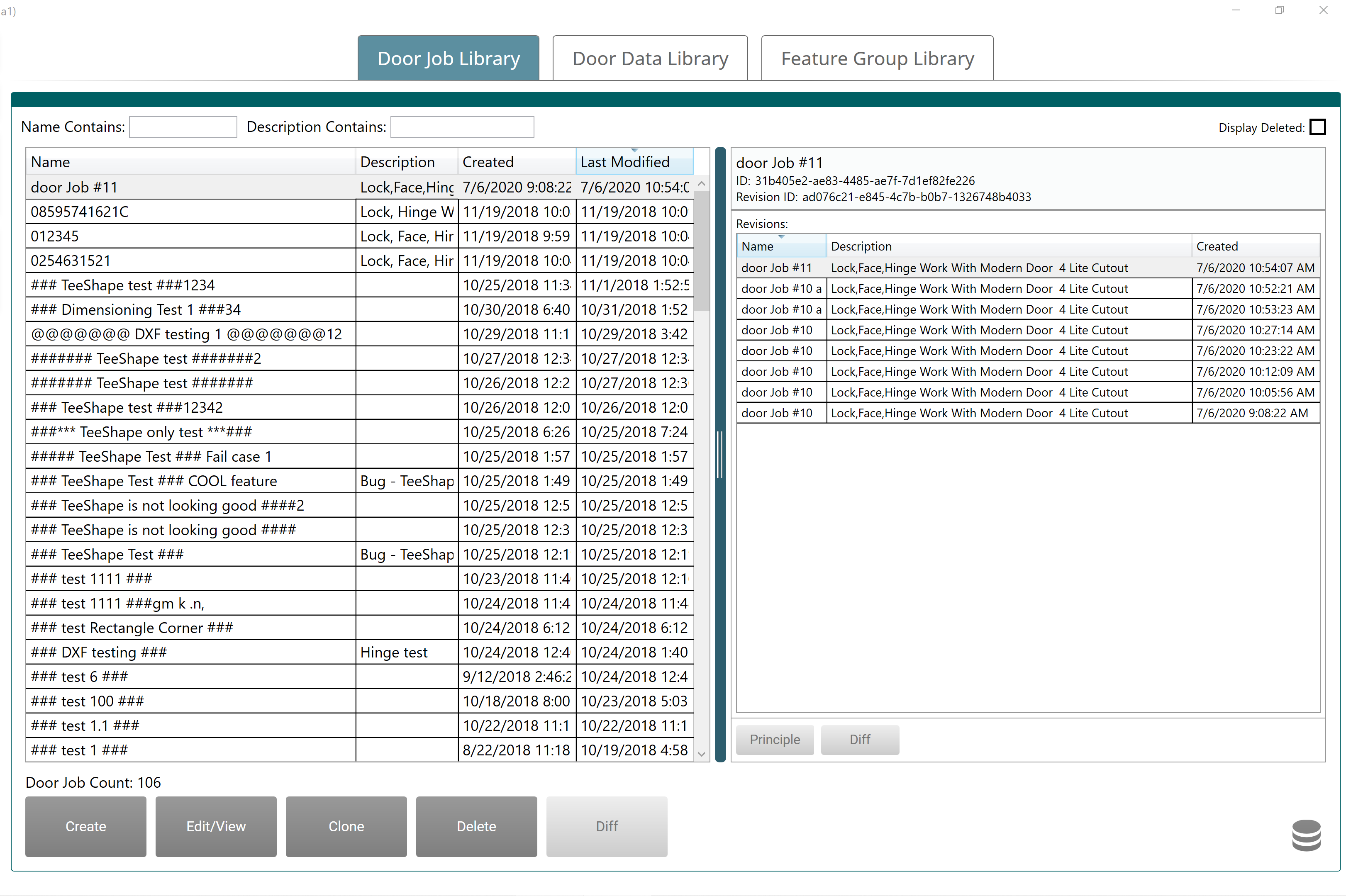
Door Job Revisions
Door Job revisions can be compared, and any revision can be made the Principle.
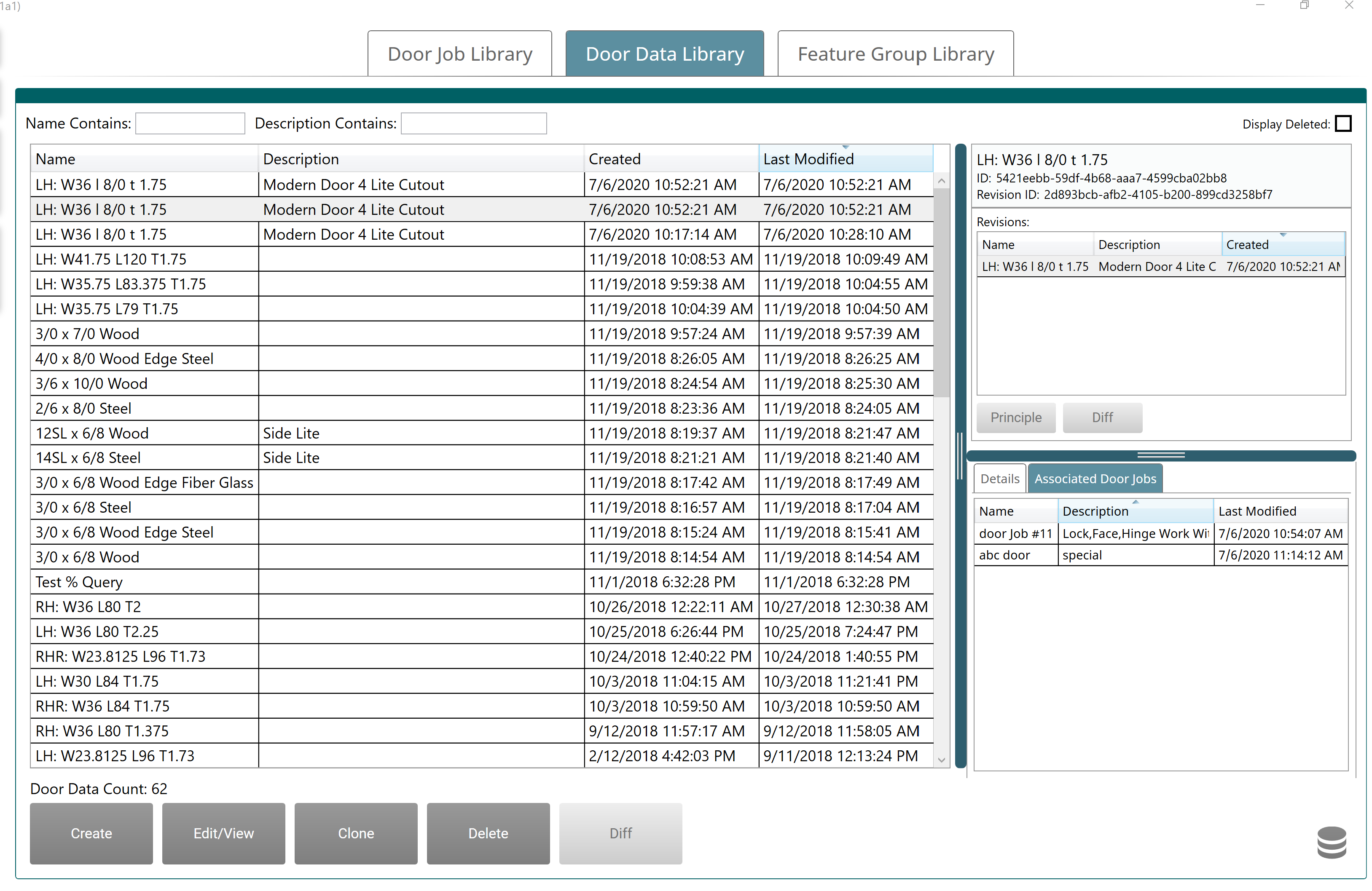
Door Data Revisions
The upper panel lists the revisions, which can be compared, and any of them can be made the Principle. The lower panel lists:
- The Door Jobs that use the selected Door Data file.
- The revision ID.
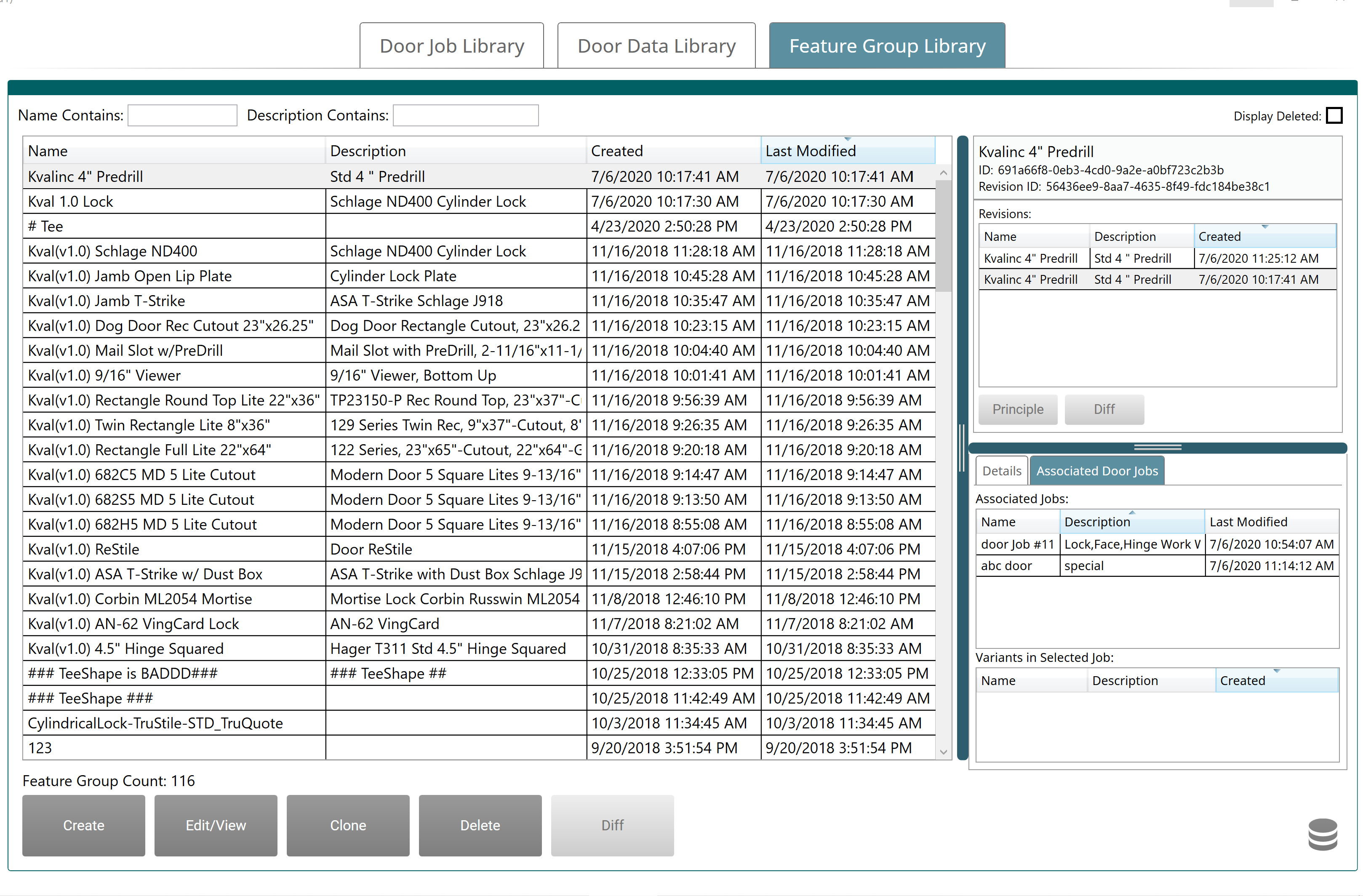
Feature Group Revisions
The upper panel lists the revisions, which can be compared, and any of them can be made the Principle. The lower panel lists:
- The Door Jobs that use the selected Feature Group file.
- The revision ID.
- Any variants of the file.
How Door Jobs Use Library Files
When Door Data or a Feature Group is part of a Door Job, an icon next to it in the Feature Tree shows how it relates to the library.
| Icon | Meaning |
|---|---|
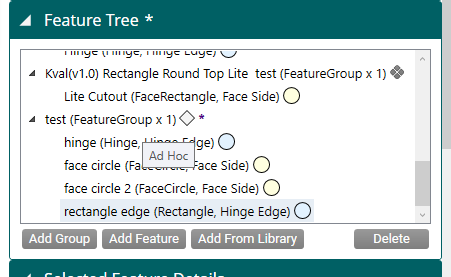
| Light diamond | Ad Hoc: not linked to any library revision |
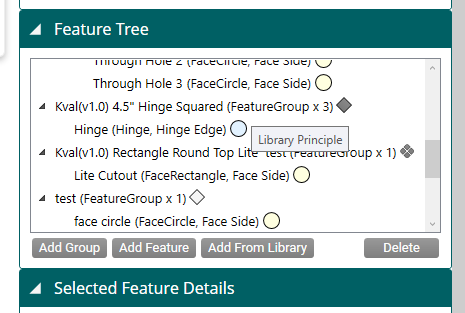
| Dark gray diamond | Library Principle: added from the library, unchanged |
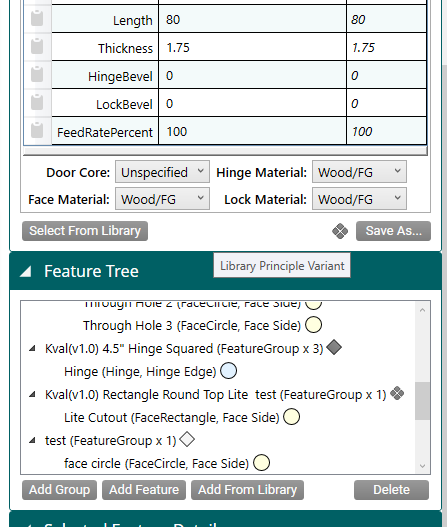
| Spotted dark gray diamond | Library Principle Variant: added from the library, then changed in the Door Job |
An asterisk (*) next to a name means the Door Job has unsaved changes.
Ad Hoc
Ad Hoc Door Data or Feature Groups belong to a Door Job without being linked to any revision in the library. This lets you create or edit a Door Job independently of the library's Feature Groups and Door Data.
In this example, the test Feature Group was created from scratch inside the Door Job, so it shows the light diamond.
Library Principle
A Library Principle is Door Data or a Feature Group added to a Door Job from the library with no changes. It stays linked to its library revision.
In this example, the hinge Feature Group was added from the Feature Group Library, so it shows the dark gray diamond.
Variants
A variant is a revision that has been changed after being added to a Door Job. Variants are only created by editing a revision inside a Door Job; they can never be added to a Door Job directly. They let a Door Job adjust a library file to suit it while still tracking which revision it came from.
For example, a Feature Group might hold the cuts for a particular lock, but the lock's location varies between Door Jobs. Add the lock Feature Group to a Door Job, change its location, and save the Door Job: that creates a variant. The lock revision's list of associated Door Jobs still includes every job that uses it, whatever the location.
Variants show the spotted dark gray diamond. In this example, the Door Data's hinge bevel was changed from 3 to 0 after it was added, and the Feature Group's hinge corner radii were changed from 0″ to 0.25″, so both are variants.
The Feature Group Library's revision pane lists the variants of the selected file, and the Door Jobs that use them: