
Feature Types
A Feature's Feature Type is the shape it cuts, and its Door Side is where on the door or jamb the cut goes. Set both in the Selected Feature Details panel.
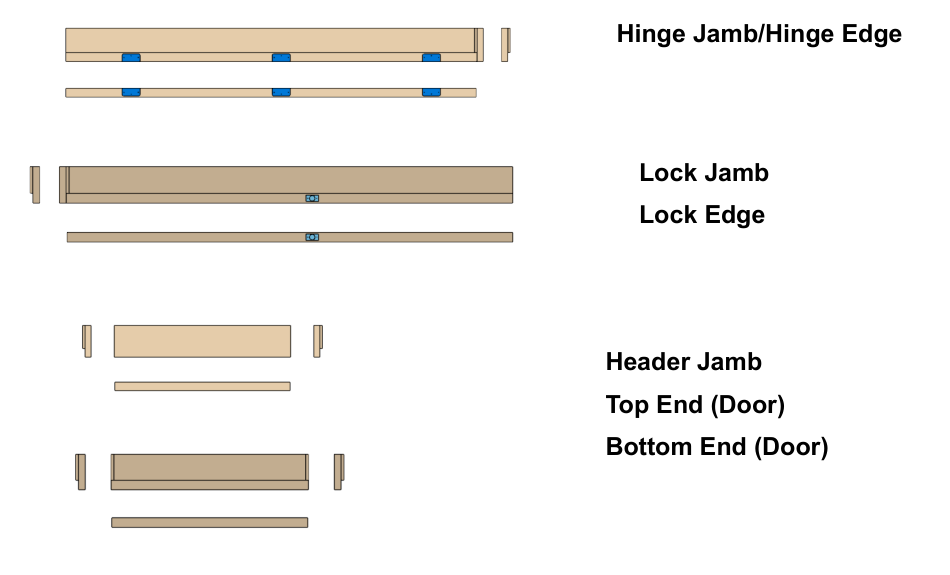
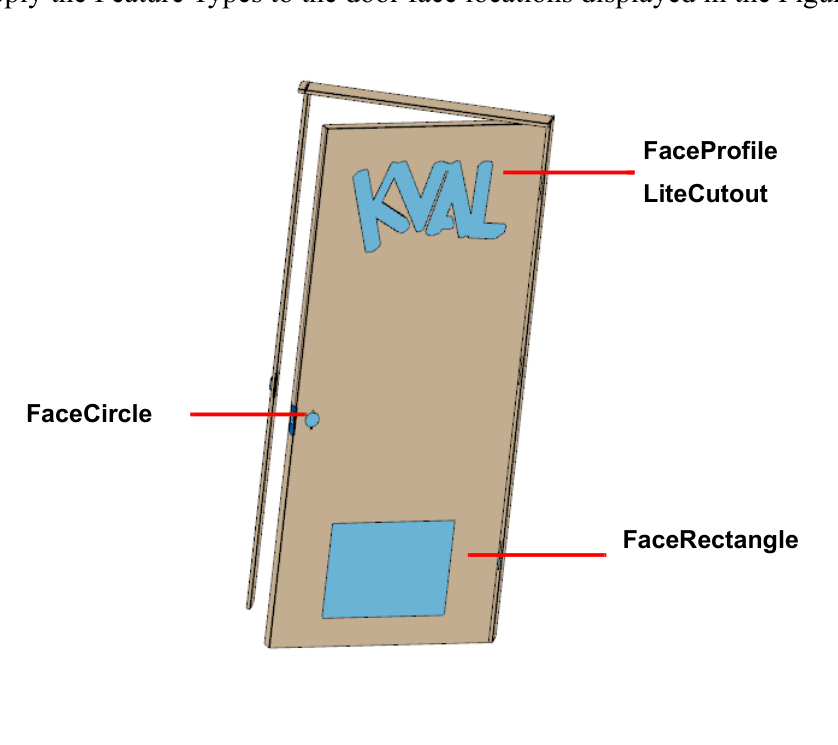
Feature types are either edge types, cut into an edge of the door or jamb, or face types, cut into the face of the door.
| Edge types | Door sides |
|---|---|
| Circle, Hinge, Rectangle, TeeShape | Top End, Bottom End, Hinge Edge, Lock Edge, Hinge Jamb, Lock Jamb, Header Jamb |
| Face types | Door sides |
|---|---|
| FaceCircle, FaceRectangle, FaceProfile, LiteCutout | Face |
Locations and Depths
Every Feature is positioned relative to its parent (its Feature Group, or the Feature above it in the tree) using the group's coordinate references.
- Edge features use TLocation (across the door's thickness) and LLocation (along its length). A cut on the top or bottom end is placed across the width instead.
- Face features use WLocation (across the door's width) and LLocation (along its length).
- A location of
0puts the Feature at its parent's location. Use it for children that should line up with their parent.
Edge features cut to a single Depth. Face features have two depths, so they can cut from either face of the door:
- DepthClosestToRef: depth into the face nearest the group's T Reference.
- DepthFurthestFromRef: depth into the opposite face.
For a cut all the way through the door, set DepthClosestToRef to $Door.Thickness and DepthFurthestFromRef to 0.
Tool Ranges
Circles have Minimum and Maximum versions of their diameter and depth. By default they're set to the diameter and depth themselves (the expressions Diameter and Depth). Widen the range to let the machine use a wider range of tools for the cut.
Edge Types
Rectangle
A rectangular pocket in an edge, such as a lock plate. See the lock example.
| Property | Description |
|---|---|
| TLocation, LLocation | Position of the rectangle's center |
| Depth | Depth of the pocket |
| Bevel | Bevel angle, in degrees. Usually set to the door's bevel, for example $Door.LockBevel |
| Length | Length of the rectangle, along the door's length |
| Width | Width of the rectangle, across the door's thickness |
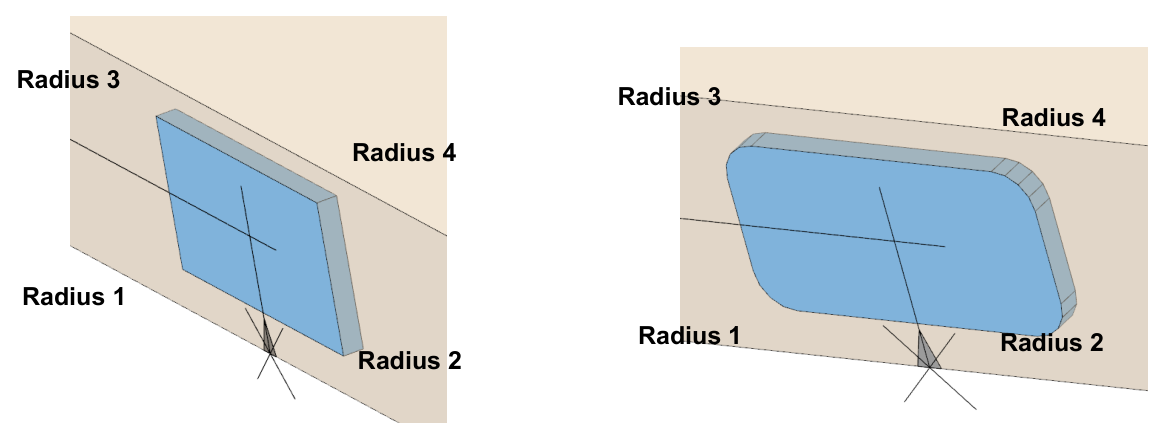
| Radius1 – Radius4 | Radius of each corner. 0 makes a square corner, which needs a machine with a chisel |
Circle
A round hole or bore in an edge, such as a lock plunge or a predrill hole. See the lock example.
| Property | Description |
|---|---|
| TLocation, LLocation | Position of the circle's center |
| Depth | Depth of the hole |
| Bevel | Bevel angle, in degrees |
| Diameter | Diameter of the hole |
| DiameterMinimum, DiameterMaximum | Range of tool diameters allowed. See Tool Ranges |
| DepthMinimum, DepthMaximum | Range of depths allowed. See Tool Ranges |
Hinge
A hinge mortise, with optional predrill holes. See the hinge example.
| Property | Description |
|---|---|
| TLocation | Position across the edge. Calculated as Width / 2.0 |
| LLocation | Position of the hinge's center along the edge. Length / 2 puts the top of the hinge at the group's location |
| Depth | Depth of the mortise |
| Bevel | Bevel angle, in degrees. Usually $Door.HingeBevel |
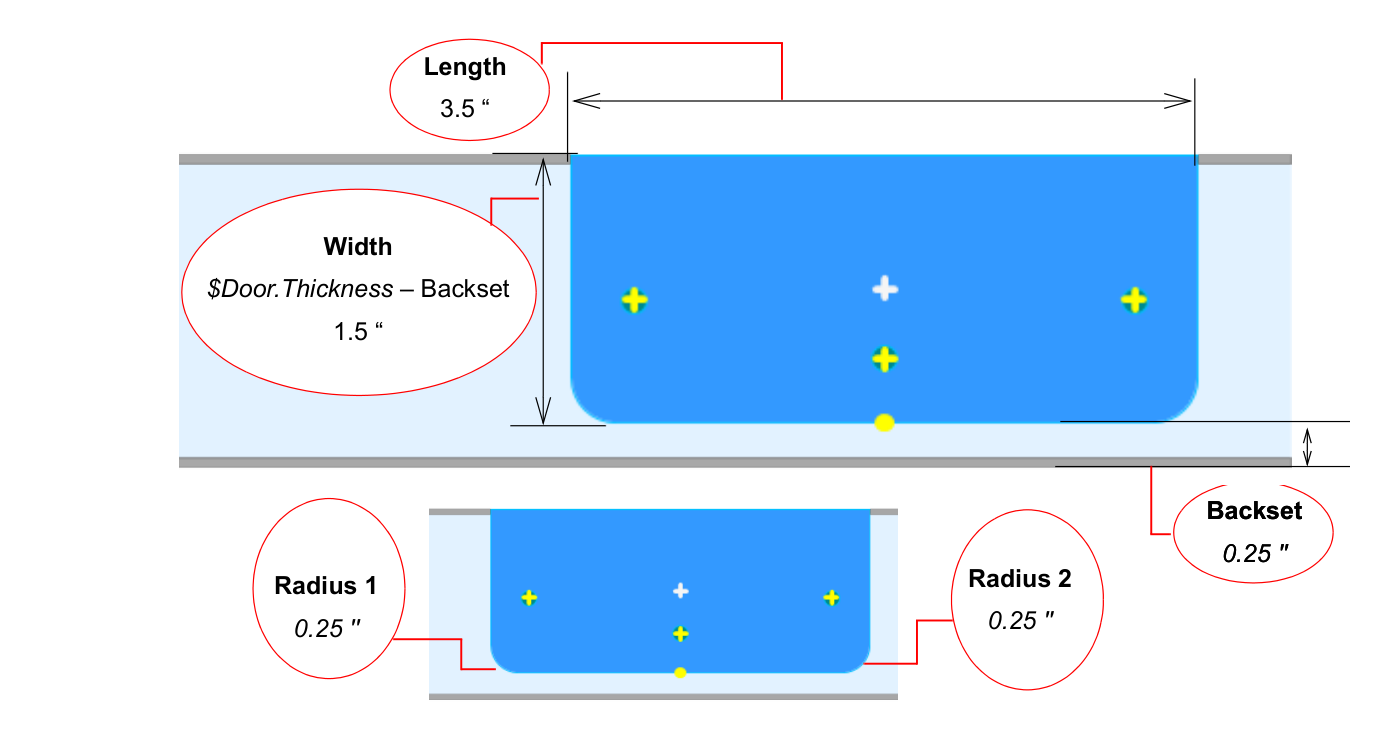
| Backset | Uncut distance between the mortise and the far face of the door |
| Width | Width of the mortise across the edge. Calculated as $Door.Thickness - Backset |
| Length | Length of the hinge |
| PredrillDepth | Depth of the predrill holes |
| PredrillDiameter | Diameter of the predrill holes |
| Radius1, Radius2 | Corner radii |
Predrill Holes
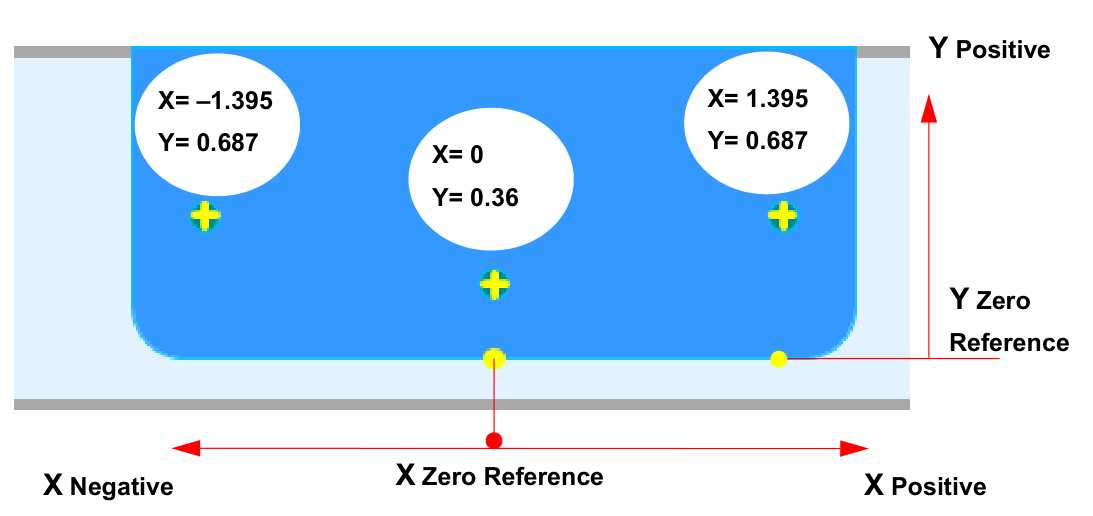
Select Predrill On to drill screw holes in the hinge mortise, then list them under Predrill Locations. Use Add Hole and Remove Hole to change the list.
Each hole has an X Position and Y Position, measured from the bottom middle of the hinge:
- X runs along the hinge's length, and can be positive or negative.
- Y runs across it, and can only be positive.
NOTE
For a hinge on the jamb, the predrill holes are a mirror image of the positions entered.
TeeShape
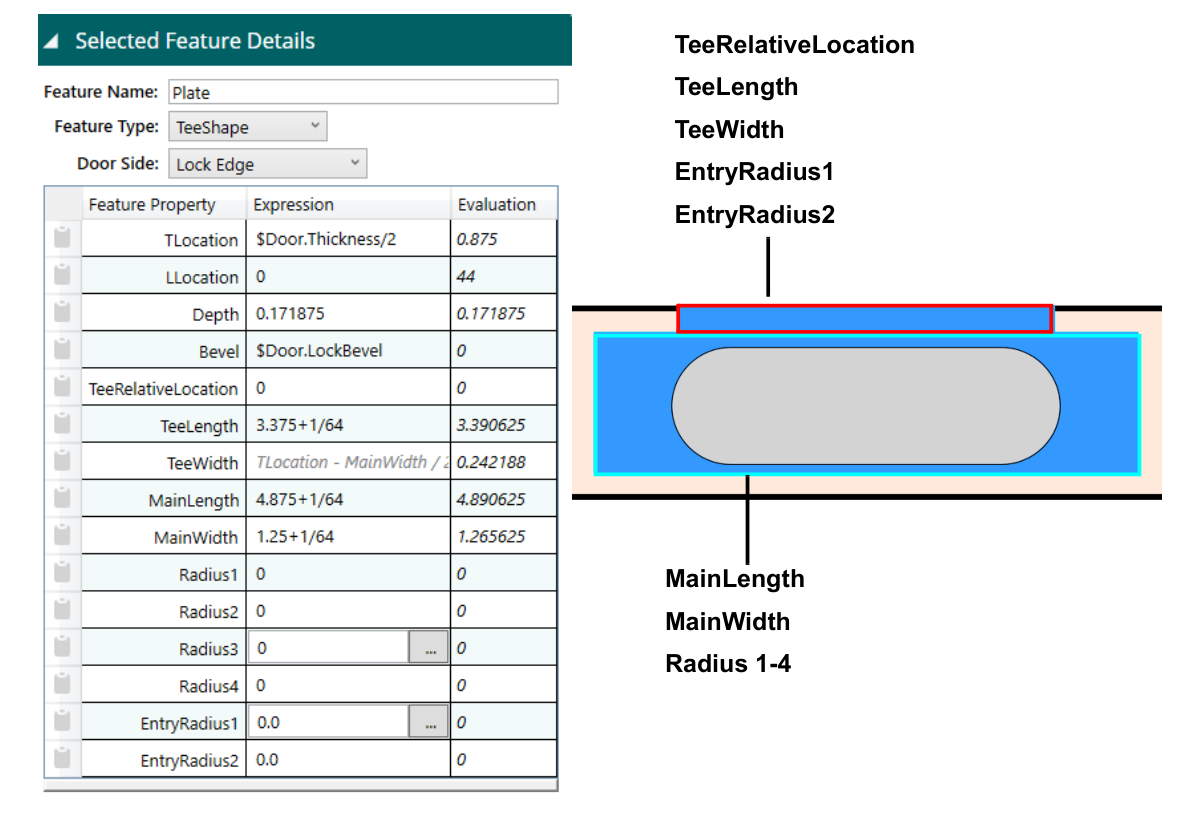
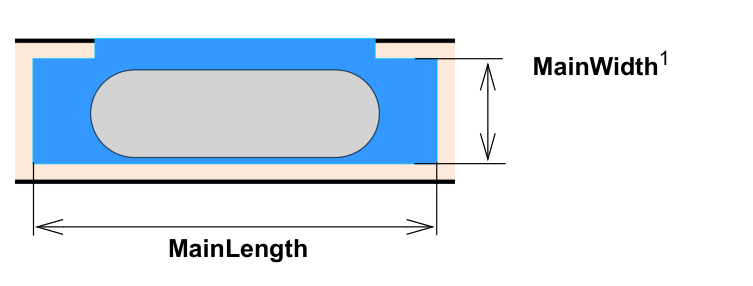
A Tee-shaped pocket made of two rectangles: a narrow Tee at the surface and a wider Main body below it. See the Tee-Shape example.
| Property | Description |
|---|---|
| TLocation, LLocation | Position of the cut |
| Depth | Depth of the cut |
| Bevel | Bevel angle, in degrees |
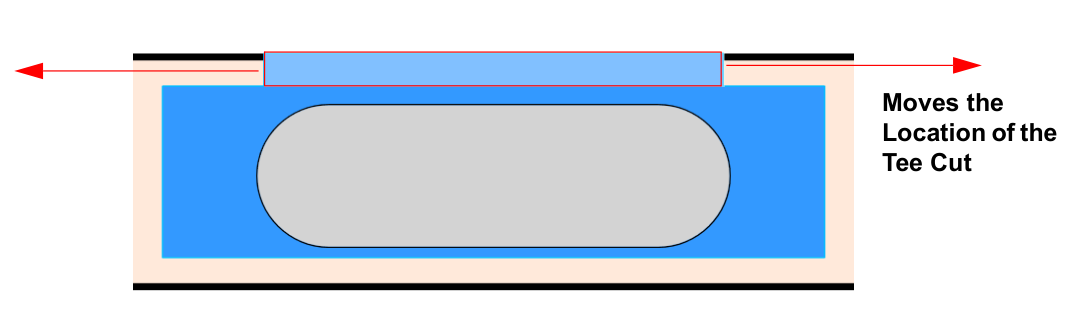
| TeeRelativeLocation | Moves the Tee toward the top or bottom end, measured from the center of the Main body. Used for features such as olive hinges |
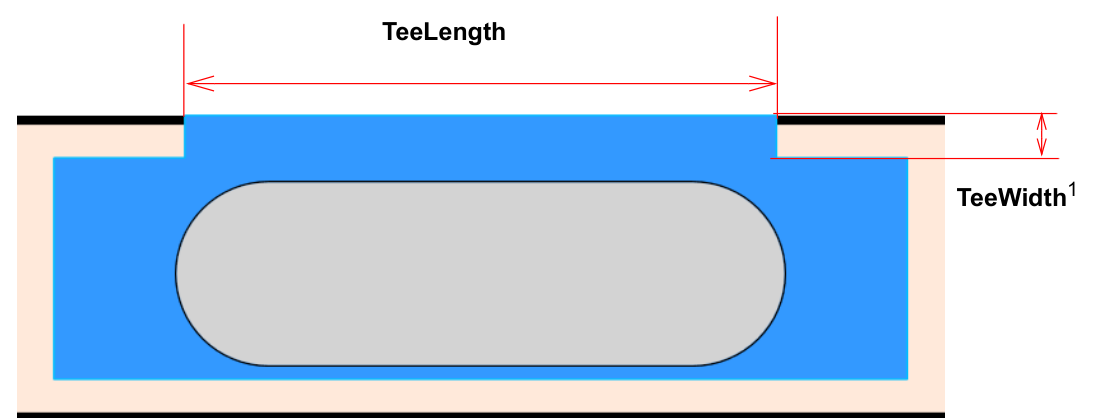
| TeeLength | Length of the Tee |
| TeeWidth | Width of the Tee. Calculated as TLocation - MainWidth / 2.0, so changing MainWidth changes it |
| MainLength, MainWidth | Length and width of the Main body |
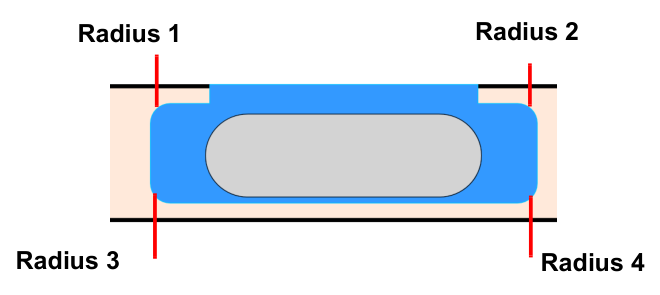
| Radius1 – Radius4 | Corner radii of the Main body |
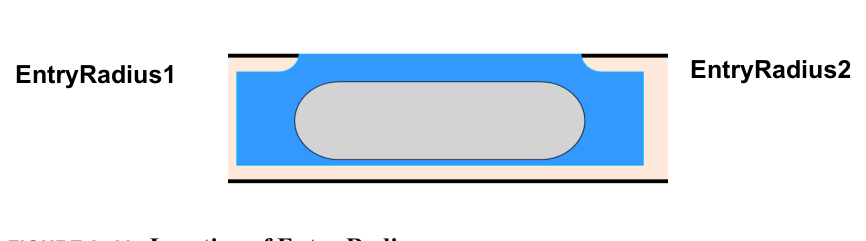
| EntryRadius1, EntryRadius2 | Corner radii where the Tee meets the edge |
| TeeRelativeLocation | TeeLength and TeeWidth |
|---|---|
 |  |
| MainLength and MainWidth | Radius1 – Radius4 | EntryRadius1 and EntryRadius2 |
|---|---|---|
 |  |  |
Face Types
FaceCircle
A round hole in the face of the door, such as a lock bore. See the lock example.
| Property | Description |
|---|---|
| WLocation, LLocation | Position of the circle's center |
| DepthClosestToRef, DepthFurthestFromRef | Depths from each face. See Locations and Depths |
| Diameter | Diameter of the hole |
| DiameterMinimum, DiameterMaximum | Range of tool diameters allowed. See Tool Ranges |
FaceRectangle
A rectangular pocket or cutout in the face of the door, such as a lite. Large corner radii make round or arched tops. See the face rectangle example.
| Property | Description |
|---|---|
| WLocation, LLocation | Position of the rectangle's center |
| DepthClosestToRef, DepthFurthestFromRef | Depths from each face. See Locations and Depths |
| Length | Length of the rectangle, along the door's length |
| Width | Width of the rectangle, across the door's width |
| Radius1 – Radius4 | Radius of each corner |
FaceProfile
A shape imported from a DXF file and engraved into the face of the door to a set depth.
| Property | Description |
|---|---|
| WLocation, LLocation | Position of the shape's origin |
| DepthClosestToRef, DepthFurthestFromRef | Engraving depths from each face. See Locations and Depths |
The shape itself is drawn in the Profile Editor.
LiteCutout
A shape imported from a DXF file and cut all the way through the face of the door, such as a custom lite.
| Property | Description |
|---|---|
| WLocation, LLocation | Position of the shape's origin |
LiteCutouts always cut through the door, so there's no depth. The shape, tool size, plunge point, and knockout points are set in the Profile Editor.